Recently, I was involved in a big infrastructure refreshment project for one of our customers across different locations in Europe. The old hosts were replaced with the brand new Dell PowerEdge R710 hosts with Intel X5650 processor and 96 GB of memory. All hosts were installed with the vSphere Hypervisor (ESXi). Here are some best practice BIOS settings that we used during the project.
Power on the server and press F2 during the initialization process to enter the BIOS and let’s start with:
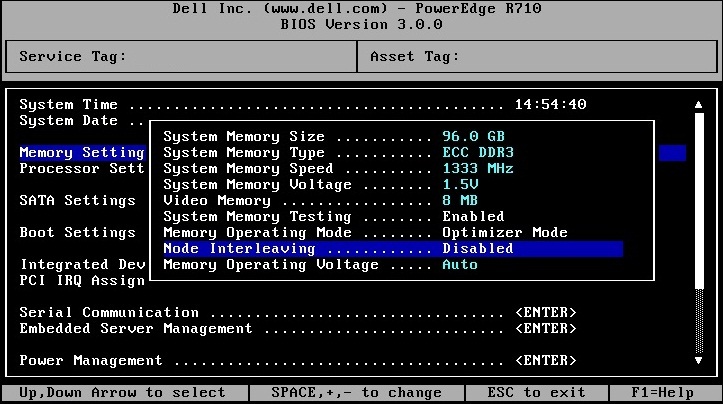
Memory Settings
- Set Node Interleaving to Disabled
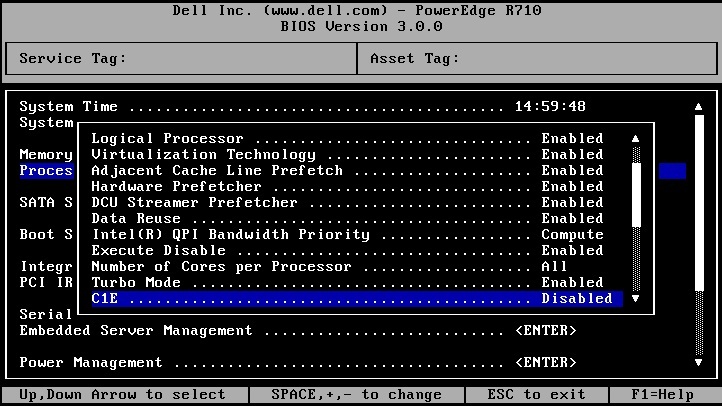
Processor Settings
- Set Virtualization Technology to Enabled
- Set Turbo Mode to Enabled
- Set C1E to Disable
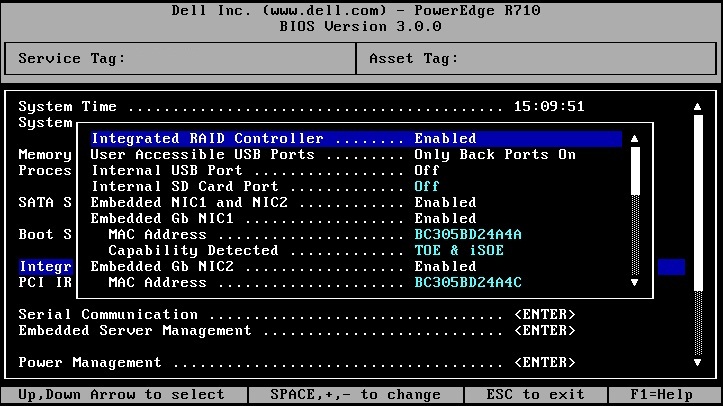
Integrated Devices
- Set the Embedded NIC1 to Enabled without PXE
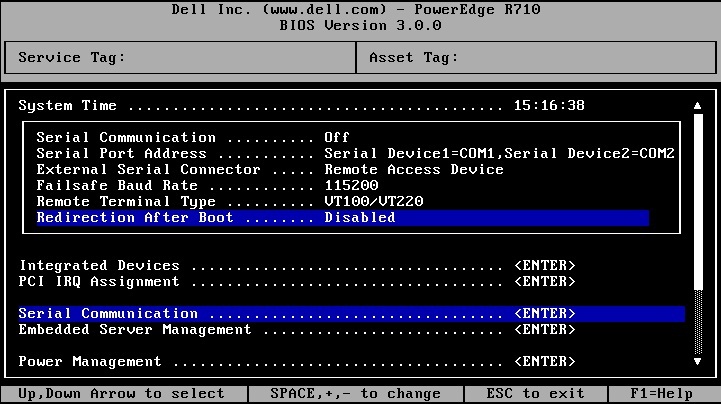
Serial Communication
- Set Serial Communication to Off
- Set Redirection After Boot to Disabled
Power Management
- Set for Maximum Performance
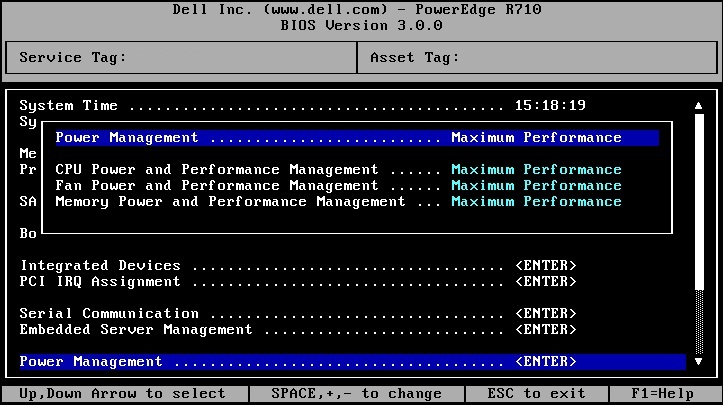
Save the settings and reboot the server. You can now start the installation of the VMware vSphere Hypervisor 🙂
Cheers!
– Marek.Z
Marek,
We are about to do a similar upgrade project, and I am wondering if you could possibly elaborate just a bit about why you configure these settings this way. Just a line or two, and/or a link would be really helpful. I’d really appreciate it.
Thanks!
Hi Mihir,
Sure, of course. Thanks for visiting.
The processor and memory settings can easily be found in the Performance Best Practices for VMware vSphere 4.1 whitepaper (see link below). I suggest you read it. There is a lot of information for setting up your hardware with vSphere 4.x.
Regarding the Integrated devices and Serial Communication settings, they will not be used on the servers so I turned it off to save the IRQ’s 🙂
Cheers!
http://www.vmware.com/pdf/Perf_Best_Practices_vSphere4.1.pdf
Having a couple of performance issues with r710 with the same processors but with 64GB RAM. I’m hoping some BIOS tweaks will help to fix this problem.
What time of RAID hardware and setup do you have?
Thanks for posting
Jamie
Hi there,
I’m sorry. But what do you mean by “time of RAID”? Type of RAID setting? If so, we used flash cards to boot the ESXi.
Cheers!
Yeah, I meant Type! Been a long day!
I was having a problem with VM hosts going really really slow and I was think I’ve done something wrong on the hardware selection and setup. Turns out the RAID card battery hadn’t fully charged. This morning it has charged and now the hosts are running fine.
Thanks for your BIOS tips
Jamie
Hi Mihir,
After couple hours by setting up the BIOS as you wrote up, it probably solved the BIGGEST problem on my R710 + ESXi 4.1 ever. The setup is 16GB RAM, 3 x 450G 15Krpm in RAID 5, guest OSs are Ubuntu 10.04 64-bit or CentOS 5.6 64-bit.
The problem was the guest OSs download (uplink) are progressive (massively) slowing down after each reboot. e.g. after each boot up, it’s around 110M/s by http or sftp transfer. By some instances, some guests will drop to 150K/s by transferring the same file. Then it spread to all guests. The files sizes are vary from 20MB to 380MB, sometime some are okay, but not all. Really can’t replicated / isolate the problem.
Initially, I thought it was the NIC problem, and spending almost a week to track down how to disable the LRO on VMXNET3, but no luck at all. Few days ago, I thought it might due to the “sleeping” issues on either NIC or hard drives on linux level. CentOS guest was the worst by hdparm -tT /dev/sda test, the reading buffer is only 3MB/s… really can’t serve as any purpose. Some other Ubuntu lucid 10.04 LTS is better in the very beginning. hdparm can up to 160MB/s or up. However, couple hours later, it drops back to 2~3MB.. and wget http from a bare metal linux is down to 150K/s (compare 110M/s after the guestOS freshly reboot.) In short, it really can’t isolate the problem on R710. So, I headed back installing ESXi 4.1 on 2950 old server. Wao, it rocks. Everything go so smooth for over 24 hours. Downloading speed is keep running 110MB/s, but R710 keeps 120K/s.
By this noon, I stopped all guest and try the last time (before buying a new server or calling Dell), I set the BIOS as you said. Wao, it rocks (at least for couple hours.) Thank you very much. I don’t know will it last for another day or not, I will report this back to here. It might be very useful to the others whose having the same issues for weeks and weeks.
Good work and thanks again.
Wilson.
Ref. testing hd test
dd if=/dev/zero of=/tmp/output.img bs=8k count=256k
sudo hdparm -tT /dev/sda
Stupid me. After another 18 hours, everything drops back to 150K or less. Then I realized assigned total guest RAM is larger than physical RAM on the host. After adjustment, everything back to the normal fast speed as they are. Hope this might help others when they come to this page!
Hi Wilson,
Common mistake 🙂 Anyway, thank for sharing!
Cheers!
Hi Marek,
Any idea how to clear the chassis intrusion alert on the R710? My ESXi 4.1U1 host keeps notifying me of this in the Hardware Status tab of the vSphere Client. The bezel is on securely as well as the top. We have been into the server to replace PCIe cards and RAM, but everything seems to be physically secure.
All the best,
VirtuallyMikeB
http://virtuallymikebrown.com
Hi Mike,
Really, I have no idea. I have never encounter that issue before. There must be a option in the BIOS to reset the warning or maybe a failing sensor?!
I suggest you call Dell Support, they got to know this 🙂
Cheers!
Hi Marek,
Thanks for the quick response. I thought there should be something in the BIOS, as well, but alas – there was nothing.
VirtuallyMikeB
Hi Marek,
Nevermind! The problem with the chassis intrusion alert was that the micro-switch was physically broken off, not leaving enough protruding from the top of the riser card for the server cover to touch, and therefore, close the switch.
I had a hard time finding any documentation on the chassis intrusion mechanism for the Dell PowerEdge R710. I found documentation on the R610, however, which told me the micro-switch was on the 2nd riser card. Since the R610 and R710 are similar, I checked it out and sure enough, the micro-switch was in the same spot. We have spare servers so I’ll just replace the riser card and order another one against a different service tag.
Keep up the good work.
VirtuallyMikeB
Hi Mike,
Glad you solved that! 🙂 Thanks for visit and of course sharing your findings with us.
Cheers!
Thanks for the great post.
Still holds for R710 on ESXi 5, except for power management, which should be “OS control” instead of “Maximum Performance”. More reading at http://www.vmware.com/files/pdf/hpm-perf-vsphere5.pdf
Indeed, thanks for pointing that out!
Cheers!
I’m hoping you might still keep track of these comments. I was curious your thoughts on the Dell memory modes of Advanced ECC vs the Optimized with regards to ESXi for VMWare. We have the R710s and default from Dell they came setup for Advanced ECC but we are looking at upgrading the memory and I’m wondering if I should switch to Optimized.
Hi Artie,
I always keep track of the comments, thanks for visit 🙂
What version of ESXi are you running on your R710s? VMware and Dell have both white papers on best practice regarding the memory settings.
Cheers!
We are currently running ESXi 4.1 with plans of upgrading to 5.1 in the coming months. From what I saw with regards to the best practices (which may not have been everything) it didn’t recommend one way or the other, but it seems everywhere I look most people are using optimized.
Looks like this setting depends on the type and amount of memory modules installed in the R710. From the Hardware Owner’s Manual:
ftp://ftp.dell.com/Manuals/all-products/esuprt_ser_stor_net/esuprt_poweredge/poweredge-r710_Owner%27s%20Manual_en-us.pdf
– For Optimizer Mode, memory modules are installed in the numeric order of the sockets beginning with A1 or B1.
– For Memory Mirroring or Advanced ECC Mode, the three sockets furthest from the processor are unused and memory modules are installed beginning with socket A2 or B2 and proceeding in the numeric order of the remaining sockets (for example, A2, A3, A5, A6, A8, and A9).
So I suggest you check the memory type in your R710s and adjust the settings accordingly.
Cheers!
I’ve seen the configuration guidelines for how to set up the memory for which mode we are running. We are currently running in Advanced ECC and setup as such. I guess what I’m curious about is why you chose Optimized mode over Advanced ECC as I have seen nothing to clearly state either as a recommendation in any documentation.
The memory banks in my R710s were fully populated with RAM and according to the manual the Optimum Mode is the correct option to configure the memory.
Cheers!
Thanks Marek… Do you have the Bios setting for ESXi 5.5 on dell R710? and what is the best way to update the Bios & firmware on Dell R710 running ESXi 5.5? Thanks.
Rah
Hi Rah,
The BIOS settings should be the same as for ESXi 5.0. Basically, everything stays as described in the blog but ESXi 5.x now supports power management so you should change the power option to “OS Contoll” as posted by Vanitylicenseplate here above.
Regarding the BIOS upgrade, I use a USB key 🙂
Cheers!
Thanks Marek for your quick respond…. I was thinking of using USB port too but We are in a secure environment so all the USB port are disable. Do you know any other way and steps of how to update the Bios and firmware? Thanks.
If you have physical access to your server you could enable the USB ports in the BIOS and disable when you update the BIOS. If you don’t have physical access to your servers, you can create a bootable CD with the BIOS update and mount it through iDRAC. Another option is Dell Open Manager Server Administrator but you probably need to buy the software first.
Cheers!
Thanks Marek…. I do have access to the server but USB devices are not allow in the building. Do you have step by step how to do this? Thanks.
No, I’m sorry. But it should be in the manual. Otherwise check the http://en.community.dell.com/ community website, there should be some answers there…
Cheers!