So far we covered almost any aspect of the VMware vCenter Site Recovery Manager. We have prepared and set up the infrastructure, paired the sites, configured the VR replication, set up inventory mappings, created a protection group, configured a recovery plan and performed a test failover. In this part we will perform a planned migration and an unplanned failover from the Protected Site to the Recovery Site to simulate a disaster recovery scenario. But first, let’s define both scenarios.
What is a planned migration?
“Planned migration enables you to migrate the workloads from the protected site to the recovery site with minimal risk of data loss. A planned migration will stop if there is an error in the workflow giving you an opportunity to fix it.”
What is an unplanned failover?
“Unplanned failover is a disaster recovery event where the connection between the sites has been lost. Unplanned failover will not stop if any errors are encountered in the workflow. This provides the quickest recovery time during a disaster event.”
Initiate Planned Migration
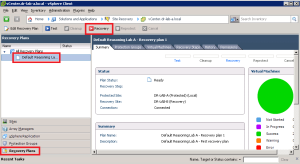
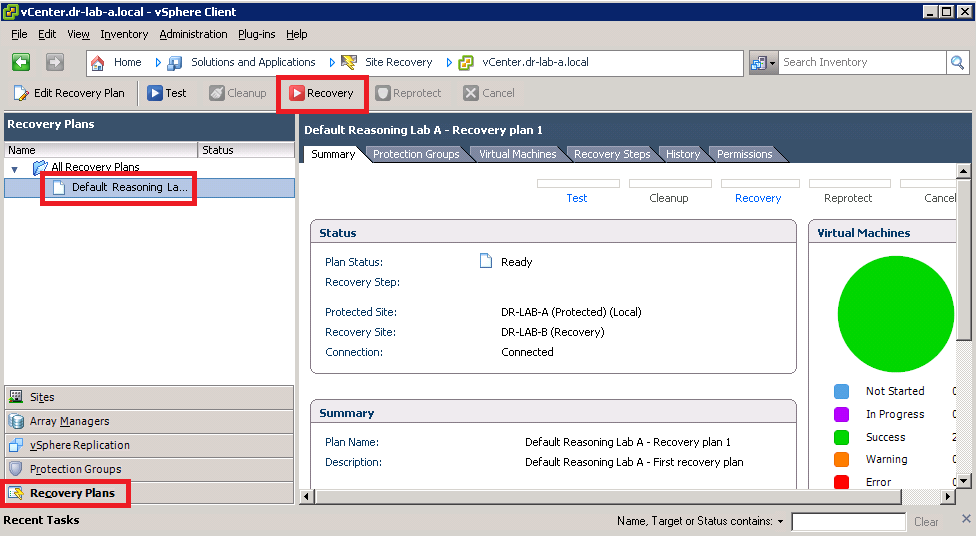
- Open the Site Recovery Manager on the Protected Site, click on the Recovery Plans in the left pane, select your recovery plan and click on the red Recovery button.
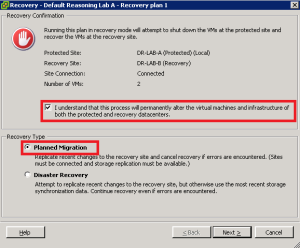
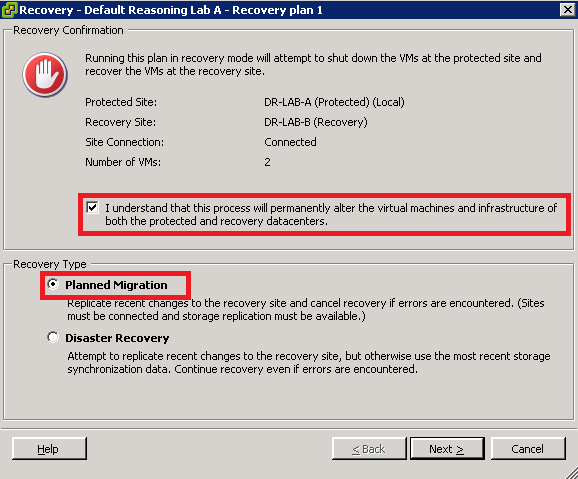
- Read the info in the Recovery Confirmation window, check the “I understand that this process will permanently alter the virtual machine and infrastructure of both the protected and recovery datacenters.” box and make sure that Planned Migration is selected under the Recovery Type. Click Next to continue.
- Review the info and click on Start to start the recovery process.
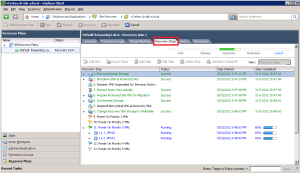
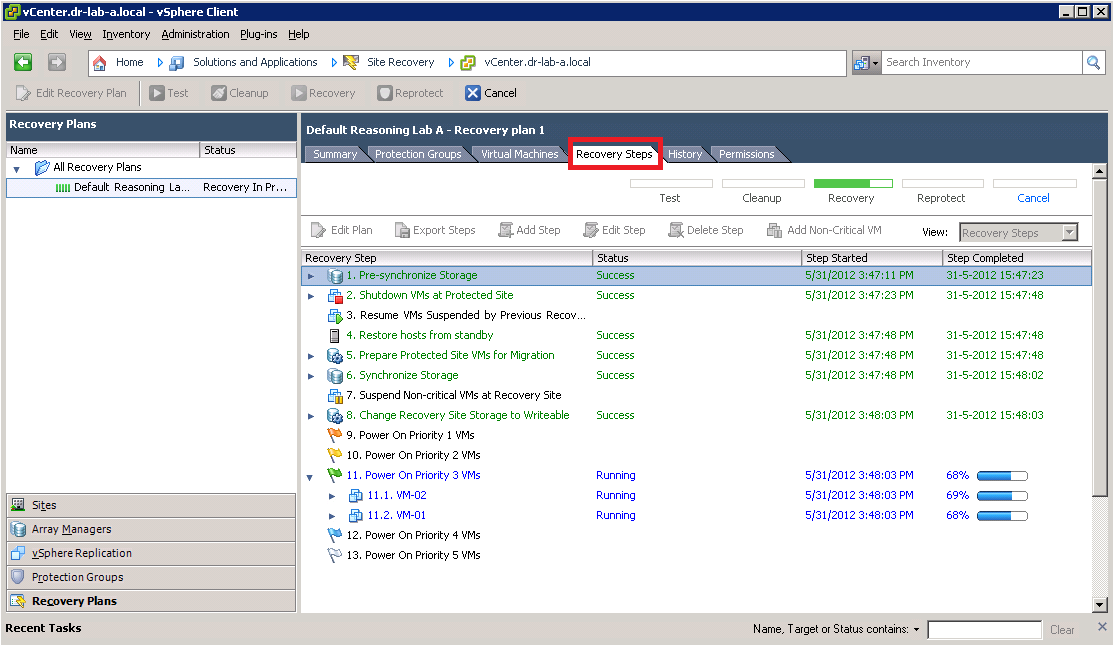
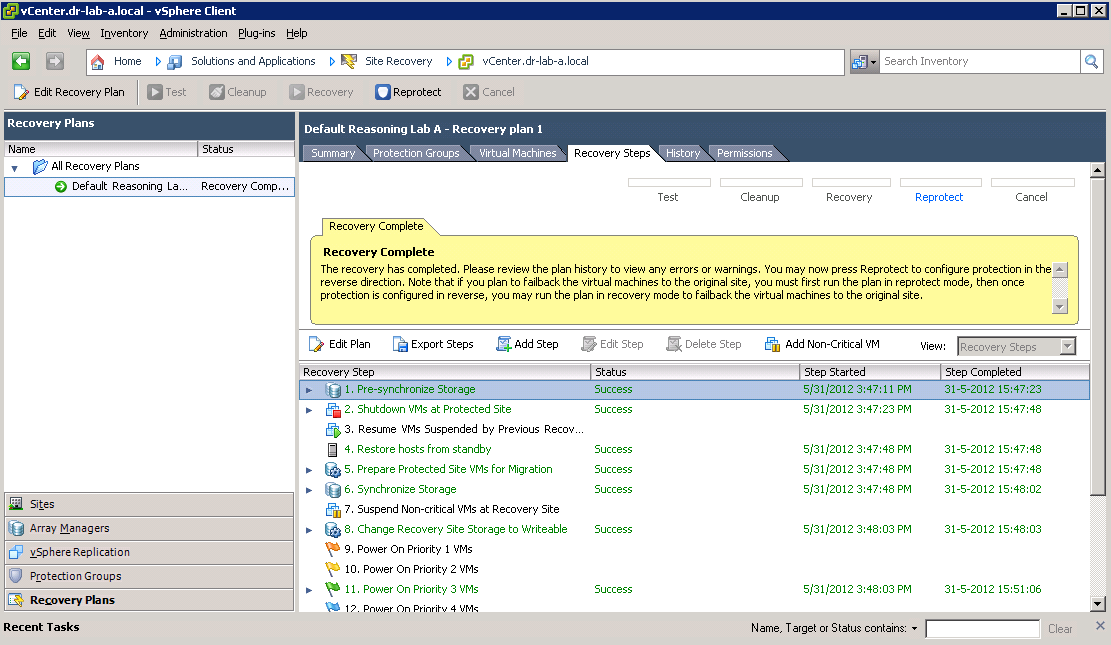
- Switch over to the Recovery Steps tab to see the progress.
- When the recovery process completes, you should see a message as depicted in the screenshot below.
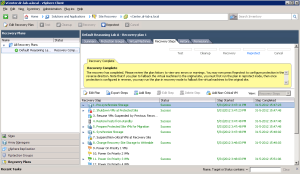
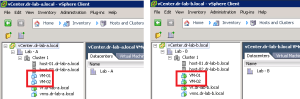
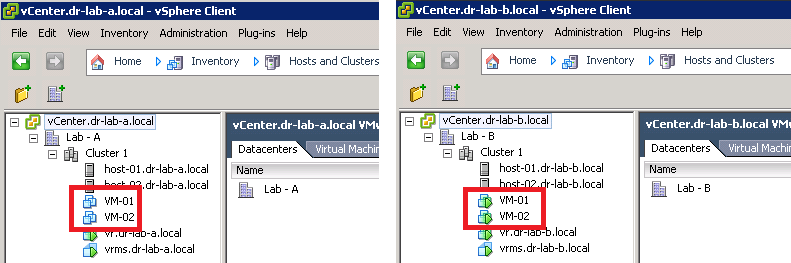
- Notice that the VMs on the Protected Site are powered off and on the Recovery Site, powered on.
Initiate Unplanned Failover
This process is very similar to the one performed with the Planned Migration but in this case the Protection Site is not available.
- On the Protected Site, simulate a disaster by powering off the vCenter Server and the ESXi hosts containing the protected VMs.
- On the Recovery Site, open the Site Recovery Manager, navigate to Recovery Plans and press the red Recovery button, just like in the previous step.
- By now you should get a warning stating that the connection to the vCenter Server at the Protected Site has been lost.
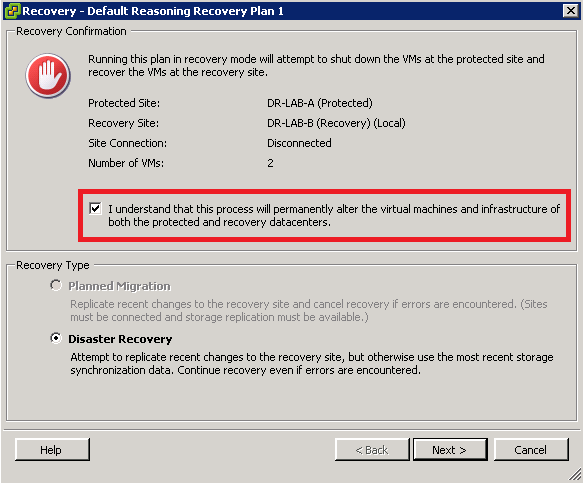
- In the Recovery Confirmation window, notice that the Planned Migration is now grayed out. Select the “I understand that this process will permanently alter the virtual machine and infrastructure of both the protected and recovery datacenters.” option and click Next to proceed.
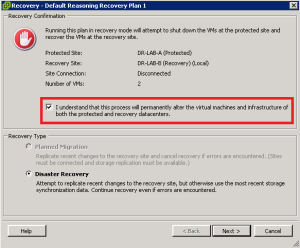
- Review the settings and press Start to begin the recovery process.
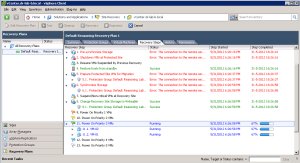
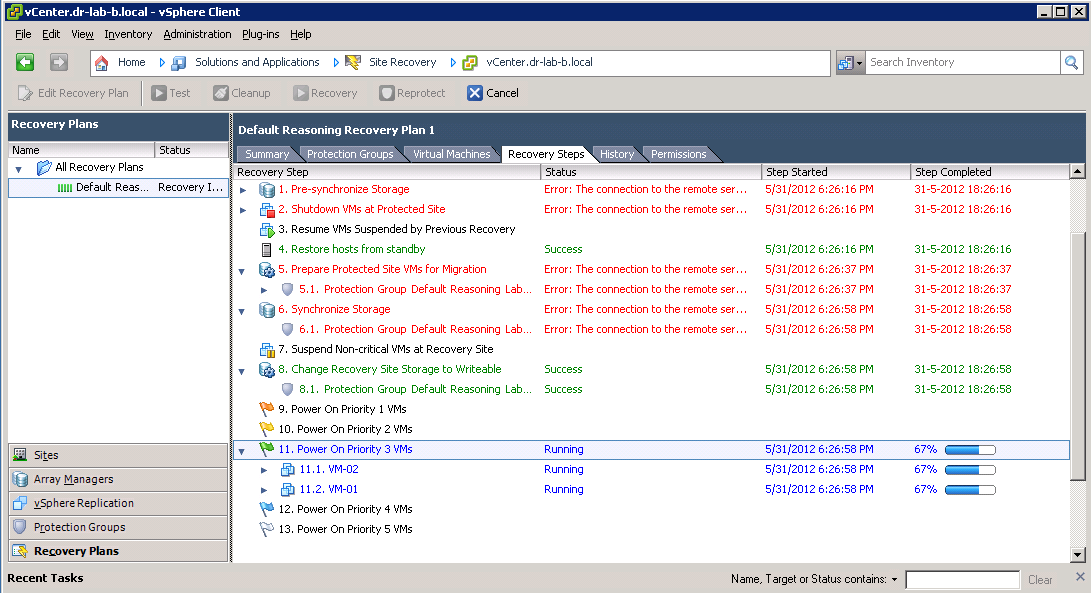
- Switch over to the Recovery Steps tab and monitor the progress. Notice the errors stating that the connection to the remote server is down. Despite the failure the recovery process continues. The VMs should be up and running in couple of minutes.
If the unplanned migration and failover process both complete successfully, your SRM implementation is properly configured. Congratulations! 🙂
This concludes the series about implementing and configuring the VMware vCenter Site Recovery Manager 5. I really like the product and I had a lot of fun building the lab, implementing and configuring SRM but also writing the blog posts. I hope you enjoyed the series as well.
- SRM 5 Part 1: Preparation
- SRM 5 Part 2: Installation
- SRM 5 Part 3: Site Pairing
- SRM 5 Part 4: vSphere Replication
- SRM 5 Part 5: VRM Pairing and VR Deployment
- SRM 5 Part 6: Inventory Mappings
- SRM 5 Part 7: VM Replication
- SRM 5 Part 8: Protection Groups
- SRM 5 Part 9: Recovery Plans
Cheers!
– Marek.Z
Excellent article. Can you please one PDF with all 10 parts? TIA!
Hi Sam,
Thanks, I will consider a full downloadable PDF if there is more interest. For now, enjoy the series! 🙂
Cheers!
Good one indeed.
May suggest you covering up the cleanup and reprotection steps?
Hi,
Well, cleanup is just a push of a button and it’s done. Re-protection on the other hand is only available with Array Based replication and since I was using vSphere Replication I wasn’t able to cover this.
Thanks for visit.
Cheers!
Gr8 series! This PDF idea is brilliant. Very good job Marek!
Thanks, much appreciated 🙂
I’m currently working on a new series on another awesome VMware product 🙂 but I’ll see if I can find some spare time to convert the blog into a pdf.
Cheers!
The information is very good. it would be great if you can also share the underline workings of SRM. Like how the failover process starts and ends…
Thanks. I am currently re-evaluating some blog on SRM and new features in SRM 6.5. I will definitely consider it.
Cheers!
We are doing the DR test , after we select disaster recovery option to recover the VM in recovery site from Protected site . how to set the re-protect for recovery VM’s.
IN one site they mentioned like after used the disaster recovery option , must do the planned migration and then re-protect -> which means again we have to do a planned migration from recovery site to protection site and then need do the re-protect.
on time of doing planned migration any issue to VM bez already vm are running due to Disaster recovery option.
Hi,
If I understand correctly, you performed a disaster recovery on your protected site as a fail-over test? If so, you need to re-connect with the protected site and re-sync the VMs and then you can re-protect. This will give you the option of going back to the protected site again.
Hope this helps.