As you probably all know, the vSphere 5.1 and vCloud Suite binaries have been made available for download yesterday. The vCenter Server ISO is now about 3,4 GB in size which is quite significant compared to 2,4 GB in version 5.0 Update 1. The size of ESXi hypervisor is now about 307 MB which is about 10 MB more than the version 5.0 Update 1.
Before you begin with upgrading your production environment, make sure you have verified the following:
- Read the vSphere Upgrade guide
- Check the VMware Product Interoperability Matrix
- Read the VMware vSphere 5.1 Release Notes
- Back up your vCenter Server databases and SSL certificates
When you are done, you can start with the upgrade process.
vCenter Server upgrade
After you have backed-up the vCenter Server database and the certificates, follow these steps to upgrade your vSphere vCenter Server to version 5.1.
- Login to your vCenter Server with the Administrator account
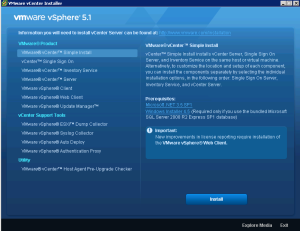
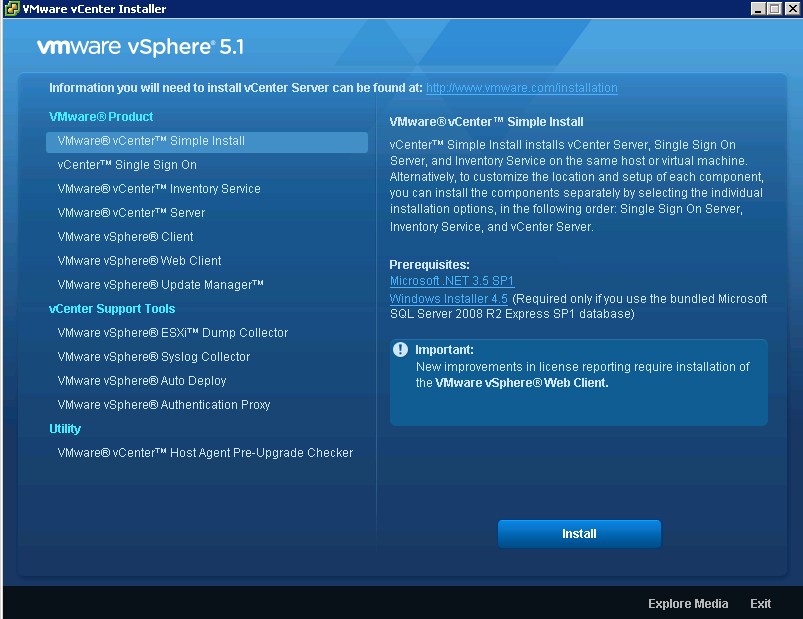
- If not automatically started, start the autorun.exe from the CD drive. The VMware vCenter Installer window should open.
Single Sign On Server
- Select the VMware vCenter Simple Install, this will automatically install the vCenter Server, Single Sign On Server and Inventory Service on your machine. Click Install to proceed.
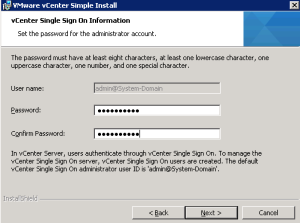
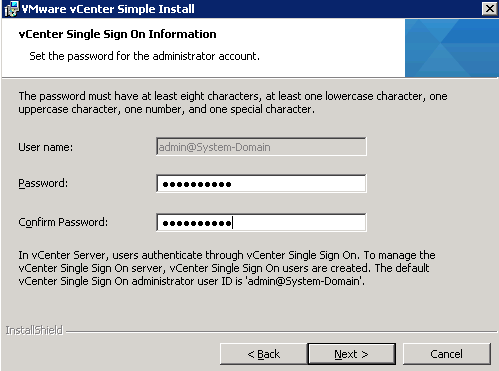
- The installer will start installing the SSO Server. Follow the instructions and set the password for the administrator account. Click Next to proceed.
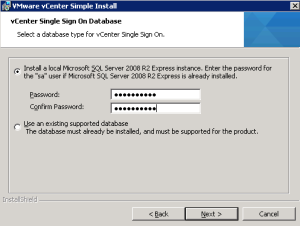
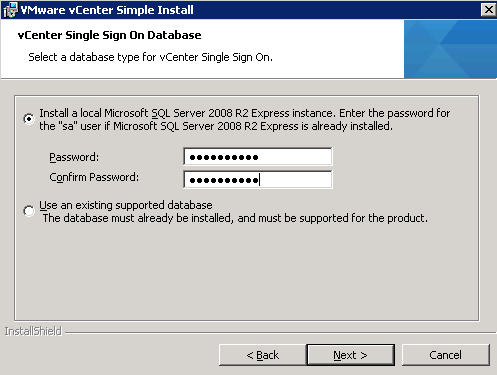
- In the vCenter Server Single Sign On Database window, provide the password for the “sa” user if you already have a Microsoft SQL Server running on your system and press Next.
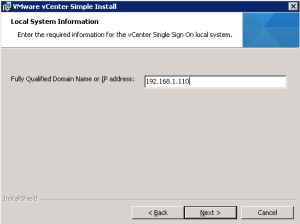
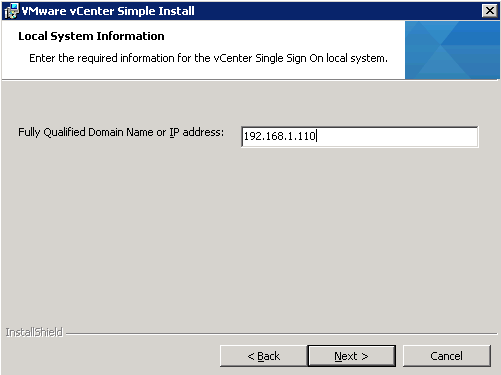
- Next, enter the FQDN or IP address for the Single Sign On system. Click Next to proceed.
- Change the installation folder or leave it at its default. Click Next to continue.
- Change the HTTPS port if the port provided is already in use or leave it at its default and click Next to continue.
- Click the Install button to start the installation of vCenter Server Single Sign On Server.
Inventory Services
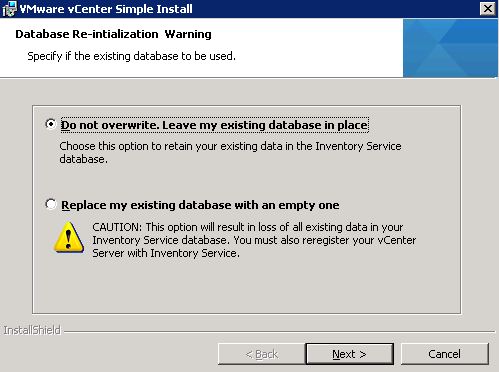
- When the installer finishes the SSO Server installation, it will continue with the Inventory Services installation. You will be presented with two options. In my case, I choose to retain my data in the Inventory Services database.
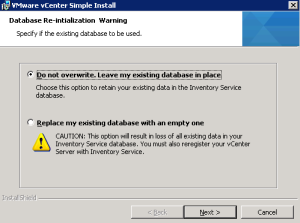
- Click Next and the Install to start the installation process.
vCenter Server
- When the installation of the Inventory Service completes, the installation wizard for the vCenter Server will start. Enter the license key or click Next to install the software in the evaluation mode.
- Click Next in the database server credentials window.
- Click OK if you get a warning stating that the VMware vSphere Update Manager will not be available after the upgrade. The Update Manager will be upgraded later in this article.

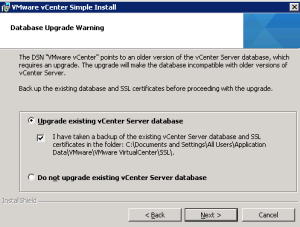
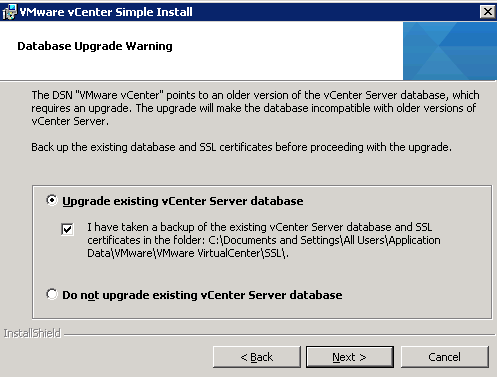
- Next, select the “Upgrade existing vCenter Server database” option and check the “I have taken backup of the existing database and SSL certificates”. Do not proceed without a backup! It’s for your own safety 🙂
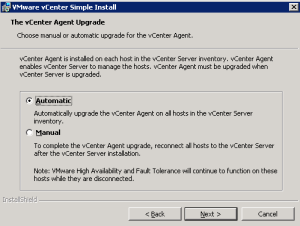
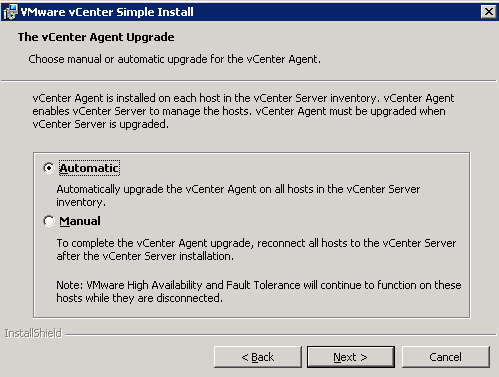
- Choose the vCenter Agent upgrade option on your hosts. You can choose to upgrade automatically or manually. It’s up to you. Click Next to continue.
- Next, enter the vCenter Server service account credentials or use the SYSTEM account. Click Next to continue.
- In the ports configuration window, check the ports that will be used by vCenter Server. Change the port numbers if necessary. If your hosts will power on more than 2000 VMs, check the “Increase the number of available ephemeral ports” option. Click Next to continue.
- Select the correct Inventory Size for your infrastructure and click Next to continue.
- If you want to review or change any of the installation setting, click the Back button. Otherwise, click Install to start the installation process.

The installation and upgrade process can take a while. If the installation completes successfully, click Finish to close the installer.
VMware vCenter Server has been installed successfully. Click Finish to exit the wizard.
Optionally, at this point you could upgrade the VMware vSphere client or you can do it after the upgrade of the Update Manager so you can re-enable the Update Manager plug-in. I will not cover the upgrade process of vSphere client because the installation is really simple and straightforward. Beside that, we all be using vSphere Web client right? 😉
Update Manager
Next in line for the upgrade is the VMware vSphere Update Manager.
- Select the VMware vSphere Update Manager link in the VMware vCenter Installer window and click on Install.
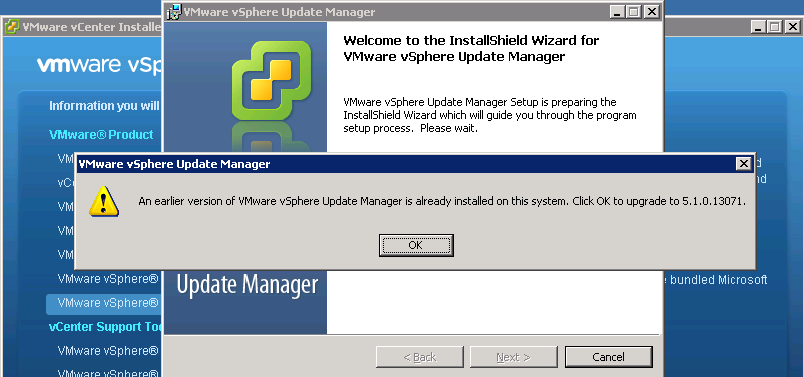
- If you have an Update Manager instance already running on your vCenter Server machine, you will see the following message. Click OK to upgrade to version 5.1.
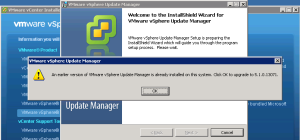
- When the wizard is ready, click Next. Click Next in the End-User Patent Agreement, accept the license agreement and click Next.
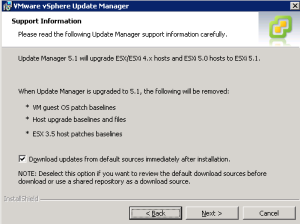
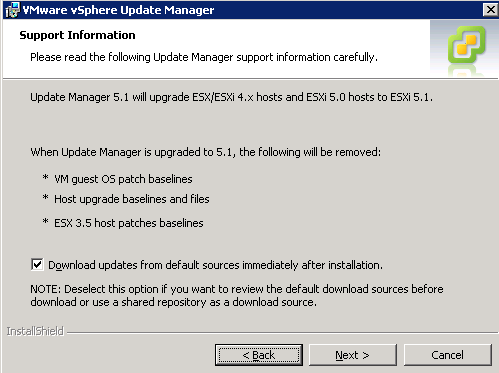
- Read the support information and select the “Download updates from default sources immediately after installation”. Click Next.
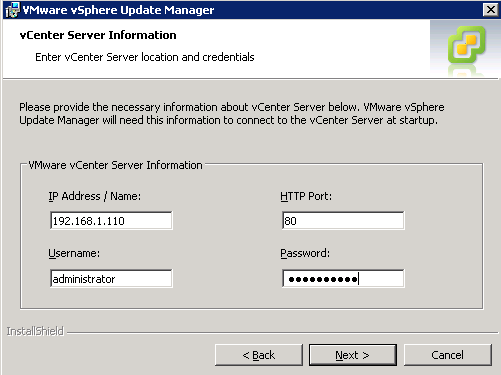
- Next, provide the vCenter Server information and credentials and click Next.
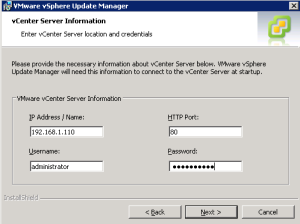
- Continue by pressing Next in the Database Information window.
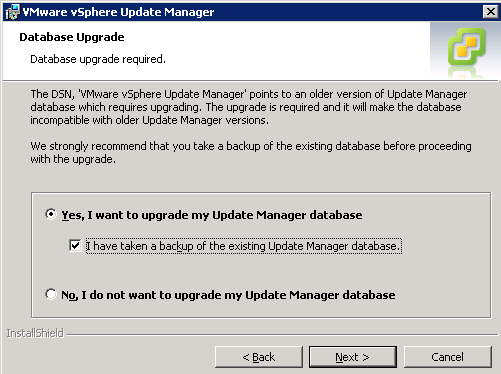
- Select the “Yes, I want to upgrade my Update Manager database” ratio button and check the box stating that you have taken a backup of the existing database. Once, again. Make sure you have the backup! 🙂 Click Next.
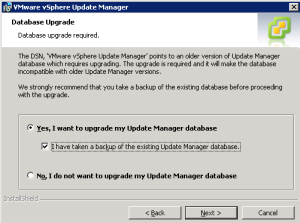
- Verify the port settings. Change the port numbers if necessary and configure the proxy if you are using one. Click Next.
- Click Install to begin the installation process.
When the installation wizard completes successfully, click Finish.
That’s it, you are done! 🙂
Optionally, you can upgrade the vSphere client if you haven’t already done so and upgrade the Dump Collector, Syslog Collector and Auto Deploy if you are using them. Also, don’t forget to re-enable the Update Manager plug-in and reassign the licenses to your vCenter Server and ESXi hosts.
Cheers!
– Marek.Z
Great Post. Very Clear and Concise!
Thanks! Cheers!
what if i want to use the remote server while installing the SSO? Please do a screenshot article on that too.
Hi Ambi,
I’ll think about it 🙂 Currently I’m too busy with other projects. You can always check the VMware vSphere 5.1 Installation & Configuration guide on how to install the SSO server on another machine.
Thanks for visit, cheers!