In the last article I have covered the upgrade process from vCenter Server 5.0 to vCenter server 5.1. In this article I will cover a quick how to on upgrading your ESXi host to version 5.1. In this case, I will perform an in place upgrade of the host. Before you proceed with upgrade in your production environment, please read chapter 6 “Upgrading and Migrating Your Hosts” from the vSphere Upgrade guide.
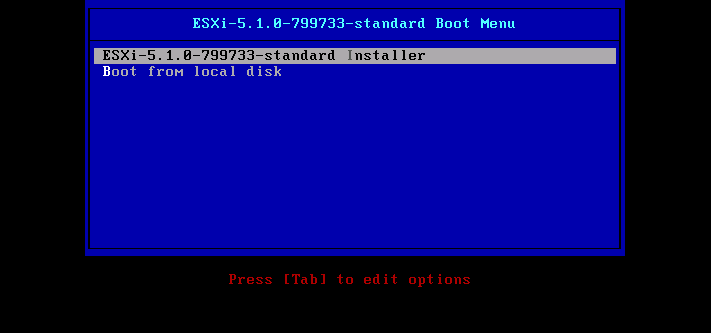
- Boot your server from the CD or USB drive containing the ESXi 5.1 installer.
- Press Enter to start the interactive installer.
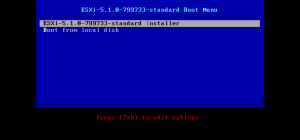
- When the files are loaded, press Enter to continue.
- Press F11 to accept the EULA.
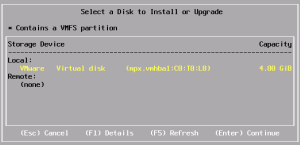
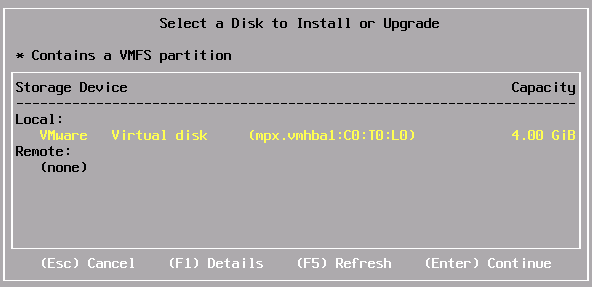
- Select the disk containing previous installation of ESXi and press Enter.
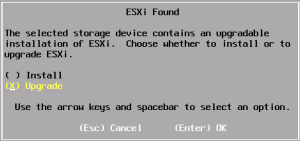
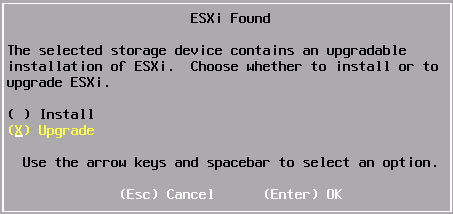
- When the scanning is completed you will be presented with the following message. Select the Upgrade option and press Enter to continue.
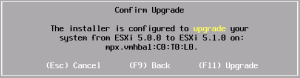
- Press F11 to confirm the upgrade of your ESXi host.
- When the installer finishes the upgrade, remove the installation media from the host and press Enter to reboot.
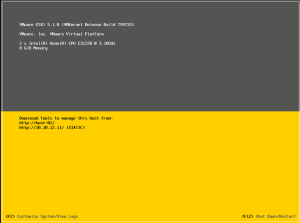
- When the hosts reboots, you should see the familiar screen with the software version , host name and IP address.
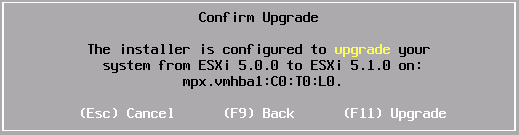
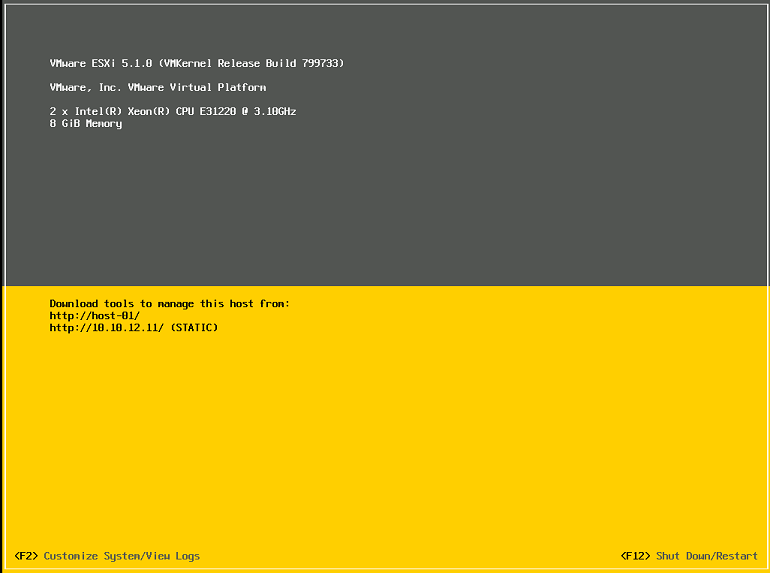
That’s it! You are done. This process takes literally minutes to complete. 🙂
Cheers!
– Marek.Z
Hi Marek, nice write-up! I described another method to update to ESXi 5.1 on my blog. It doesn’t require booting with the CD and is even faster (once you managed to download the ESXi 5.1 Offline Bundle …). See http://v-front.blogspot.de/2012/09/how-to-update-your-free-whitebox-esxi.html
– Andreas
Hi Andreas,
Great, thanks for sharing!
Cheers!
Muy buen articulo.