Default Reasoning

Construction of sensible guesses when some useful information is lacking and no contradictory evidence is present…

  • Subscribe

  • Disclaimer

    This blog is personal. The views and opinions expressed here represent my own and not those of the people, institutions or organizations that I may or may not be related with unless stated explicitly. All blog post, white papers and manuals were written during the projects, mostly at a customer site and are scenario specific. Use at your own risk.
  • Meta

Archive for the ‘PowerConnect’ Category

Lessons Learned: Dell PowerConnect 5524 switches and vSphere 5.

Posted by Marek.Z on 30 January 2012

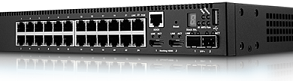
Some time ago, I configured a pair of Dell PowerConnect 6224 switches for iSCSI storage network and wrote a small blog post about the configuration. This time I had a chance to work with the Dell PowerConnect 5524 switches which were also used for an iSCSI storage network. These switches are cheaper and a bit less powerful than the 6224 series but still good for a small, dedicated iSCSI network. Before you begin with the configuration, update the firmware if applicable. Connect the stack cables, run the configuration wizard, set the (enable) password etc. The rest of the configuration is quite straightforward, just like on the 6224 series but there are some settings that should be considered.

  • Create a dedicated iSCSI VLAN and add appropriate ports to the VLAN.
  • Turn on the iSCSI Auto-Configuration feature this will enable Jumbo Frames, set the Spanning-Tree Port-Fast feature, disable the Unicast Storm Control and enable Flow Control.
  • Set the Speed of the ports in the iSCSI VLAN to gigabit connection.

Here is a quick how-to of the configuration.

Create a dedicated VLAN for iSCSI traffic

  1. Login to the switch en go to the configuration mode.
  2. Enter VLAN database: Switch(config)#  vlan database
  3. Create VLAN: Switch(config-vlan)#  vlan 2
  4. Back to config mode: Switch(config-vlan)#  exit
  5. Enter VLAN 2 interface config: Switch(config)#  interface vlan 2
  6. Name the VLAN: Switch(config-if)# name iSCSI
  7. Back to enable mode: Switch(config-if)# end
  8. Verify: Switch# show vlan

Enable iSCSI Auto-Configuration

  1. Enter the configuration mode and type: Switch(config): iscsi enable
  2. You will be asked if you want to continue and the Flow Control will be enabled on all interfaces. Answer with Yes.
  3. Now you need save your settings and reload the switch: Switch# write memory
  4. Reload the switch: Switch# reload
  5. After the reload, verify iSCSI settings with Switch# show iscsi

Assign the interfaces to the iSCSI VLAN

In this case port 1 to 10 on switch 1.

  1. Select multiple interfaces: Switch(config)# interface range gigabitethernet 1/0/1-10
  2. Add interfaces to VLAN 2: Switch(config-if-range)# switchport access vlan 2
  3. Force gigabit connection for all iSCSI ports:
  4. Switch(config-if-range)# no negotiation
  5. Switch(config-if-range)# speed 1000
  6. Save your settings: Switch# write memory
  7. You view the configuration with: Switch# show run

Repeat the steps above for the interfaces on switch 2, use interface range gigabitethernet 2/0/1-10 command to select port 1 to 10 on switch 2. It’s also a good idea to shutdown the unused ports on the switches for security reasons.

That’s it, you’re done! :)

All you have to do now is connect the cables to the switch, storage array and servers and you’re good to go.

Cheers!

- Marek.Z

Posted in Dell, ESXi 5, Hypervisor, iSCSI, PowerConnect, Storage, VMware | Tagged: | 1 Comment »

Dell PowerConnect 6224 – Lessons Learned.

Posted by Marek.Z on 14 April 2010

A few days ago I had a chance to configure a Dell EqualLogic PS4000XV iSCSI SAN connected through two Dell PowerConnect 6224 switches during a virtualization project at one of our customers. Although the configuration of the switch is quite straightforward, there are some configuration settings that should be considered.

  • Enable the Rapid Spanning Tree Protocol on the switch as well as the “spanning-tree portfast” feature on all ports connected to the SAN
  • Enable Jumbo Frame support on ports connected to the SAN
  • Disable the “storm control” feature on ports connected to the SAN
  • Enable Flow Control on the switch

Follow these steps to configure the settings mentioned above:

  1. Enable RSTP and “spanning-tree portfast”. Login to the switch, enter the enable mode and then the configure mode.
  2. Configure the RSTP spanning tree: Switch(config)# spanning-tree mode rstp
  3. Enter the port configuration mode. In this case I’ll use port 1 to 12: Switch(config)# interface range ethernet 1/g1-1/g12
  4. Configure the “portfast” feature on the ports: Switch(config-if)# spanning-tree portfast
  5. Enable Jumbo Frames: Switch(config-if)# mtu 9216
  6. Disable storm control: Switch(config-if)# no storm-control unicast
  7. Return to the config mode by typing: Switch(config-if)# exit
  8. Enable Flow Control: Switch(config)# flowcontrol (you might be disconnected if you telneted to the switch, if so you can reconnect right away)
  9. Save the settings: Switch# copy running-config startup-config
  10. Logoff the switch

And you’re done! :)

Cheers!

- Marek.Z

Posted in Dell, EqualLogic, PowerConnect | 8 Comments »

 
Follow

Get every new post delivered to your Inbox.

Join 428 other followers