Default Reasoning

Construction of sensible guesses when some useful information is lacking and no contradictory evidence is present…

  • Subscribe

  • Disclaimer

    This blog is personal. The views and opinions expressed here represent my own and not those of the people, institutions or organizations that I may or may not be related with unless stated explicitly. All blog post, white papers and manuals were written during the projects, mostly at a customer site and are scenario specific. Use at your own risk.
  • Meta

Archive for the ‘PowerEdge’ Category

Preparing Internal Flash Cards on Dell R710 for ESXi 5.x Installation.

Posted by Marek.Z on 26 January 2012

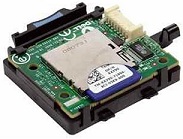
On my last project I worked once again with the Dell PowerEdge R710 servers but this time the customer followed our advice and purchased the servers with internal 2 GB flash cards. Auto deploy would of course be more awesome :) but due to the limited knowledge of vSphere at our customer, we decided to go with the flash cards. During the installation of ESXi 5.0 I noticed something unusual. The flash cards were detected correctly in the BIOS but the ESXi installer failed to install the software. Apparently the flash cards were not prepared for the installation.

Here is a quick guide on how to prepare the flash cards for the installation of vSphere 5 Hypervizor.

  1. Place the flash card in the card reader of your laptop or PC.
  2. Windows will detect the card and will ask you to format it. In my case it failed.
  3. Fire up Diskpart and create a new partition.
  4. First, list the disks in your system: DISKPART> list disk
  5. Select the correct disk (in my case disk 2): DISKPART>  select disk 2
  6. Create new partition: DISKPART> create partition primary
  7. Format the disk with FAT32 as you normally would
  8. Place the flash card back in the server, power on and go to BIOS.
  9. Make sure the flash card is the first boot device in the Boot Sequence settings.
  10. Verify that the USB Flash Drive Emulation Type is set to Hard Disk.
  11. Save your settings and reboot the server.

Wait for the ESXi installer to start and follow the default procedure. The vSphere 5 Hypervizor should now install correctly.

Cheers!

- Marek.Z

P.S. Don’t forget to wear an antistatic wrist strap when you remove and install the flash cards in the server ;)

Posted in Dell, ESXi 5, PowerEdge, VMware | Tagged: | 1 Comment »

Dell PowerEdge R710 BIOS settings for VMware vSphere 4.x.

Posted by Marek.Z on 14 April 2011

Recently, I was involved in a big infrastructure refreshment project for one of our customers across different locations in Europe. The old hosts were replaced with the brand new Dell PowerEdge R710 hosts with Intel X5650 processor and 96 GB of memory. All hosts were installed with the vSphere Hypervisor (ESXi). Here are some best practice BIOS settings that we used during the project.

Power on the server and press F2 during the initialization process to enter the BIOS and let’s start with:

Memory Settings:

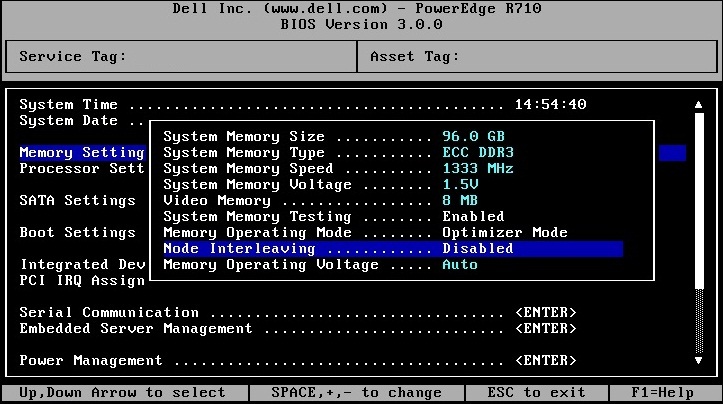
  • Set Node Interleaving to Disabled

Processor Settings:

  • Set Virtualization Technology to Enabled
  • Set Turbo Mode to Enabled
  • Set C1E to Disable

Integrated Devices:

  • Set the Embedded NIC1 to Enabled without PXE

Serial Communication:

  • Set Serial Communication to Off
  • Set Redirection After Boot to Disabled

Power Management:

  • Set for Maximum Performance

Save the settings and reboot the server. You can now start the installation of the VMware vSphere Hypervisor :)

Cheers!

- Marek.Z

Posted in Dell, ESXi 4, PowerEdge, VMware, vSphere | 15 Comments »

 
Follow

Get every new post delivered to your Inbox.

Join 429 other followers