Default Reasoning

Construction of sensible guesses when some useful information is lacking and no contradictory evidence is present…

  • Subscribe

  • Disclaimer

    This blog is personal. The views and opinions expressed here represent my own and not those of the people, institutions or organizations that I may or may not be related with unless stated explicitly. All blog post, white papers and manuals were written during the projects, mostly at a customer site and are scenario specific. Use at your own risk.
  • Meta

Archive for the ‘Microsoft’ Category

Disable “No Internet Access” notification on Windows Server 2008 (R2).

Posted by Marek.Z on 14 May 2010

The “No Internet Access” notification on the network connection icon usually appears when you’re not connected to the Internet or you probably behind a proxy server. However, when you setting up your servers in an isolated environment without Internet access and you want to disable this notification then:

  1. Open the GPMC.msc.
  2. Create or open a GPO which will be applied to your server(s).
  3. Navigate to Computer Configuration\Policies\Administrative Templates\Network\Network Connections.
  4. Enable the “Do not show the “local access only” network icon” setting.
  5. Close the GPO and GPMC.msc.
  6. Run C:\>gpupdate on the server(s) to apply the new policy.

The “No Internet Access” notification should be disabled now.

Cheers!

- Marek.Z

Posted in Microsoft, Windows Server 2008, Windows Server 2008 R2 | 8 Comments »

Delete invalid entry from the boot configuration data store on Windows Server 2008 (R2).

Posted by Marek.Z on 30 March 2010

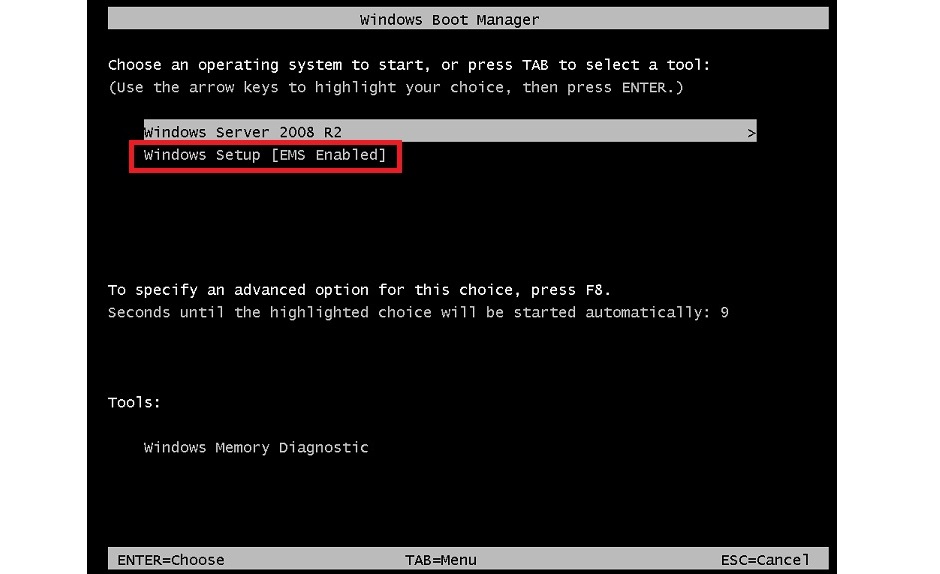
Recently I came across the following issue on a HP DL380 G5 server with freshly installed Windows Server 2008 R2 (click on the picture for a larger image). 


I have no idea what caused this. Probably an unfinished Windows installation or something. Anyway, it was annoying me :) so I decided to remove the invalid boot configuration identifier from the boot configuration data store. 

  1. When logged in with an Administrator account, start the command prompt.
  2. Next, display de identifiers and  locate the invalid one: C:\>bcdedit /enum /v
  3. Remove the invalid entry by typing: C:\>bcdedit /delete {identifier from step 2} /cleanup
  4. You should get the “The operation completed successfully” message.
  5. Verify that the invalid entry is removed by typing: C:\>bcdedit /enum /v
  6. Exit the command prompt and reboot the server. 

The server should boot without displaying the Windows Boot Manager menu. 

Cheers! 

- Marek.Z

Posted in Microsoft, Windows Server 2008, Windows Server 2008 R2 | Leave a Comment »

Acrobat Reader crashes in Internet Explorer with MSVCR80.dll.

Posted by Marek.Z on 11 March 2010

I got this error in the Application Event log every time a user wanted to open a pdf file from the Internet Explorer on several brand new Windows Server 2008 RDS hosts. Acrobat tries to open a pdf file in the Internet browser but crashes. I’ve solved this by disabling the browser integration in Acrobat Reader by running the following command from the login script: 

REG ADD “HKEY_CURRENT_USER\Software\Adobe\Acrobat Reader\9.0\Originals” /v “bBrowserIntegration” /t REG_DWORD /d 0 /f 

Now, when a user logs in on a RDS host and opens a pdf file from the Internet Explorer, the file is first downloaded to a temporary folder and opened from there. The pdf file will no longer be opened within the Internet Explorer.

Cheers! 

- Marek.Z

Posted in Microsoft, Remote Desktop Services (TS) | Leave a Comment »

Log in as Administrator on a RD Session Host when the host is a member of RD Connection Broker group.

Posted by Marek.Z on 3 February 2010

Lately, I came across a strange issue after setting up a new Windows Remote Desktop Services farm running Windows Server 2008 R2 Servers. When accessing a RD Session Host through RDP on the hosts’ NetBIOS, FQDN or IP address as Administrator, I was redirected to an another RD Session Host. Logically, because the RD Connection Broker has load balanced the request. Anyway, I still wasn’t able to login as Administrator on the RD Session host, even when using the /console switch. After some research I found out that this switch was replaced with the /admin switch. When I used the /admin switch I was able to connect to the RD Session Host without the redirection from RD Connection Broker.

You can read an article about this at the Performance Team Blog.

- Marek.Z

Posted in Microsoft, Windows 7, Windows Server 2008 R2 | Leave a Comment »

Export and Import Mailbox data to a PST file on Exchange Server 2007.

Posted by Marek.Z on 11 January 2010

This procedure describes how to export all mailboxes from one Exchange Server to a PST files and how to import the PST files to another Exchange Server in a different domain. Before you begin make sure that: 

  • You have a computer that has Outlook 2003 (SP2) or 2007, Exchange 2007 Management Tools (32-bit version), PowerShell and .NET Framework installed
  • Logon with an account that has Exchange Server Administrator and Local Administrator rights
  • You have full access to the users’ mailbox on both servers. See the note below on how to do it. 
  1. Start the Exchange Management Shell and type the following: [PS] C:\>Get-Mailbox –Database “<Exchange Server FQDN>\<Database Name>” | Export-Mailbox –PSTFolderPath C:\PSTFiles to export all users mailbox to a PST file. Press A for Yes to All. Depending on the size of your database, the export procedure could take a long time to complete.
  2. Now the mailboxes are exported to the PST files, make sure that the PST file name matches the alias of the users’ account in the other domain.
  3. Next, import the PST files to the other Exchange Server by typing the following: [PS] C:\>Get-Mailbox –Database “<Exchange Server FQDN>\<Database Name>” | Import-Mailbox –PSTFolderPath C:\PSTFiles and press A for Yes for All. Wait until the import operation completes.

Note:
To grant the Administrator Full Access rights on the database type the following command:
[PS] C:\>Get-Mailbox -Database “<Exchange Server FQDN>\<Database Name>” | Add-ADPermission -User Administrator -AccessRights GenericAll

Cheers!

- Marek.Z

Posted in Exchange 2007, Microsoft, PowerShell, Scripting | 5 Comments »

 
Follow

Get every new post delivered to your Inbox.

Join 457 other followers