Default Reasoning

Construction of sensible guesses when some useful information is lacking and no contradictory evidence is present…

  • Subscribe

  • Disclaimer

    This blog is personal. The views and opinions expressed here represent my own and not those of the people, institutions or organizations that I may or may not be related with unless stated explicitly. All blog post, white papers and manuals were written during the projects, mostly at a customer site and are scenario specific. Use at your own risk.
  • Meta

Archive for the ‘Storage’ Category

Lessons Learned: Dell PowerConnect 5524 switches and vSphere 5.

Posted by Marek.Z on 30 January 2012

Some time ago, I configured a pair of Dell PowerConnect 6224 switches for iSCSI storage network and wrote a small blog post about the configuration. This time I had a chance to work with the Dell PowerConnect 5524 switches which were also used for an iSCSI storage network. These switches are cheaper and a bit less powerful than the 6224 series but still good for a small, dedicated iSCSI network. Before you begin with the configuration, update the firmware if applicable. Connect the stack cables, run the configuration wizard, set the (enable) password etc. The rest of the configuration is quite straightforward, just like on the 6224 series but there are some settings that should be considered.

  • Create a dedicated iSCSI VLAN and add appropriate ports to the VLAN.
  • Turn on the iSCSI Auto-Configuration feature this will enable Jumbo Frames, set the Spanning-Tree Port-Fast feature, disable the Unicast Storm Control and enable Flow Control.
  • Set the Speed of the ports in the iSCSI VLAN to gigabit connection.

Here is a quick how-to of the configuration.

Create a dedicated VLAN for iSCSI traffic

  1. Login to the switch en go to the configuration mode.
  2. Enter VLAN database: Switch(config)#  vlan database
  3. Create VLAN: Switch(config-vlan)#  vlan 2
  4. Back to config mode: Switch(config-vlan)#  exit
  5. Enter VLAN 2 interface config: Switch(config)#  interface vlan 2
  6. Name the VLAN: Switch(config-if)# name iSCSI
  7. Back to enable mode: Switch(config-if)# end
  8. Verify: Switch# show vlan

Enable iSCSI Auto-Configuration

  1. Enter the configuration mode and type: Switch(config): iscsi enable
  2. You will be asked if you want to continue and the Flow Control will be enabled on all interfaces. Answer with Yes.
  3. Now you need save your settings and reload the switch: Switch# write memory
  4. Reload the switch: Switch# reload
  5. After the reload, verify iSCSI settings with Switch# show iscsi

Assign the interfaces to the iSCSI VLAN

In this case port 1 to 10 on switch 1.

  1. Select multiple interfaces: Switch(config)# interface range gigabitethernet 1/0/1-10
  2. Add interfaces to VLAN 2: Switch(config-if-range)# switchport access vlan 2
  3. Force gigabit connection for all iSCSI ports:
  4. Switch(config-if-range)# no negotiation
  5. Switch(config-if-range)# speed 1000
  6. Save your settings: Switch# write memory
  7. You view the configuration with: Switch# show run

Repeat the steps above for the interfaces on switch 2, use interface range gigabitethernet 2/0/1-10 command to select port 1 to 10 on switch 2. It’s also a good idea to shutdown the unused ports on the switches for security reasons.

That’s it, you’re done! :)

All you have to do now is connect the cables to the switch, storage array and servers and you’re good to go.

Cheers!

- Marek.Z

Posted in Dell, ESXi 5, Hypervisor, iSCSI, PowerConnect, Storage, VMware | Tagged: | 1 Comment »

Troubleshooting IP-Hash load balancing on a NFS storage network.

Posted by Marek.Z on 24 January 2012

When configuring a NFS storage network at one of our customers some time ago, I noticed that the ESXi host wasn’t utilizing all NICs assigned to the NIC team for the VMkernel traffic. After some research, I have found this article written by Frank Denneman a while ago and this VMware KB document. According to the blog post and the article mentioned above, this issue may occur if the calculated hash returns the same result based on the source IP and both destination IP’s. Before we jump in to troubleshooting, let’s take a look at what is exactly going wrong.

Setup

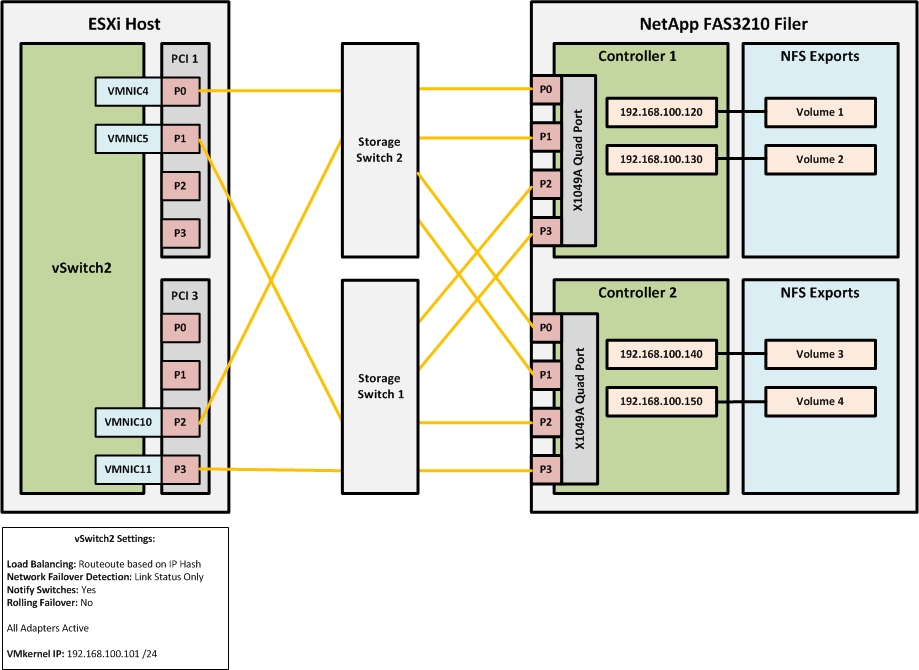
The setup consisted of 4 Dell R710 ESXi hosts connected through 2 stacked Cisco 2960 switches to a NetApp FAS3210 filer. Four NICs per server have been dedicated to NFS storage and cabled in a redundant configuration (2 per switch in EtherChannel). See the drawing for more details.

Solution

To see what is going wrong, we need to calculate the IP-Hash manually. The formula is:

Source IP XOR Destination IP = x MOD y = z where:

Source IP = VMkernel IP address in Hexadecimal
Destination IP = IP address of the NFS filer in Hexadecimal
x = Exclusive OR operation output
y = Number of physical NICs
z = Modulo operation output

First, let’s calculate the IP-Hash value of the IP addresses in the current setup. To do this, we need to convert the IP addresses from decimal to hexadecimal. I used the BitCricket IP Calculator to do the conversion.

Next, calculate the IP-Hash with the formula specified earlier and take a look at the outcome. You can use Windows Calculator to do this, just set the view to Programmer and make sure it is set to Hex and Qword.

1.    C0A86465 XOR C0A86478 = 1D MOD 4 = 1
2.    C0A86465 XOR C0A86482 = E7 MOD 4 = 3
3.    C0A86465 XOR C0A8648C = E9 MOD 4 = 1
4.    C0A86465 XOR C0A86496 = F3 MOD 4 = 3

As you can see, the values are not unique. That’s what causes the problem. The IP-Hash calculation only returns 2 different values instead of 4. To correct this, we need to reconfigure the destination IP addresses (on the NFS Filer) so that every IP-Hash calculations return a unique value. The IP addresses have been reconfigured as follow:

Let’s have a look at the IP-Hash calculations now.

1.    C0A86465 XOR C0A8646F = A MOD 4 = 2
2.    C0A86465 XOR C0A86470 = 15 MOD 4 = 1
3.    C0A86465 XOR C0A86471 = 14 MOD 4 = 0
4.    C0A86465 XOR C0A86472 = 17 MOD 4 = 3

As you can see, the IP-Hash calculation now returns unique values in all four cases. This will now allow utilization of all four NICs from the ESXi host to the NFS Filer.

Cheers!

- Marek.Z

Posted in ESXi 4, NetApp, NFS, Storage, VMware | Tagged: , , | 1 Comment »

 
Follow

Get every new post delivered to your Inbox.

Join 424 other followers