Default Reasoning

Construction of sensible guesses when some useful information is lacking and no contradictory evidence is present…

  • Subscribe

  • Disclaimer

    This blog is personal. The views and opinions expressed here represent my own and not those of the people, institutions or organizations that I may or may not be related with unless stated explicitly. All blog post, white papers and manuals were written during the projects, mostly at a customer site and are scenario specific. Use at your own risk.
  • Meta

Archive for the ‘Tools & Utilities’ Category

How to install Dell MD Storage Array vCenter Plug-in.

Posted by Marek.Z on 2 February 2012

The Dell Modular Disk Storage Array vCenter Management Plug-in is a plug-in for your vCenter (doh! :) ) that provides integrated management of Dell MD series of storage arrays through the vSphere Client. This plug-in allows you to configure the hosts with the storage arrays and to create, map, and delete virtual disks from the storage arrays. It also allows you to create hardware snapshots, virtual disk copies, and remote replication but these are premium features and need to be purchased separately. I must say, I have been working with this plug-in for several days now and I really start to like it! Before you start the installation, make sure you have downloaded the latest version of the plug-in from Dell. The installation is really easy and straight forward so I won’t go in to detail here but there are some caveats you should consider during and after the installation.

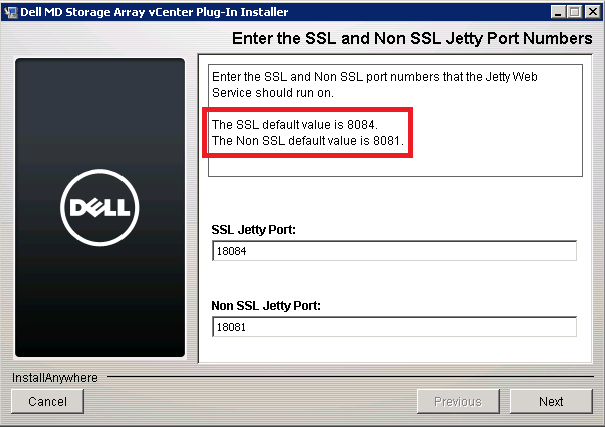
SSL and Non-SSL Jetty Port Numbers

After the initial installation you will be presented with a configuration window for the port of the Jetty Web Service. If you have VMware Update Manager running on your vCenter Server, change the port number to something else because port 8084 is used by VMware Update Manager.

If you don’t change it the plug-in will not be enabled in the vCenter and you’ll get the following error.

Continue with the configuration wizard and provide the IP address of the vCenter Server as well as the password for the Administrator account and optionally the e-mail address. When the registration with the vCenter is complete, open your vSphere Client and login to the vCenter Server. Install the SSL certificate and ignore the warning. You should now have the Dell MD Storage Array vCenter Plug-in icon in your vCenter under Solutions and Applications.

Assign Storage Administrator role to the users

If you go straight to the plug-in after the installation, you’ll receive the following error.In order to use the plug-in you have to assign the Storage Administrator role to appropriate users. Go to Roles under Administration on the vCenter Server and add a new role. Name it Storage Administrators and assign Read/Write permission under Storage Administrator privilege.

Close the window and go to Hosts and Clusters. Select the vCenter object, right click it and select Add Permissions. Under Assigned Role pane, pull down the menu and select Storage Administrators. Under Users and Groups, click the Add button and add appropriate users to the Storage Administrators group.

Close and reopen the vSphere Client for the permissions to take effect.

Add the storage array to the plug-in

Open the plug-in once again, install SSL certificate to Trusted Root Certification Authorities and accept the SSL warning. Next, click Add Array and enter the IP addresses for both controllers and the password for the array. The plug-in should successfully connect to the array and you can now manage your storage array from the vCenter Server. Have fun!

Cheers!

- Marek.Z

Posted in Dell, PowerVault, Tools & Utilities, vCenter, VMware | Tagged: , | Leave a Comment »

Create and start a data collector from command line using LogMan.exe.

Posted by Marek.Z on 23 July 2009

Regarding to my previous post about “List all performance counters on a Windows computer and export it to a file”, I wanted to automate the process of creating a basic system performance counter. So, if you successfully created a counter file and saved it with the counters you want to monitor, you can now use the LogMan.exe utility to create a new data collector in the Reliability and Performance Monitor. Start the command prompt on the machine you want the data collector to be created and type the following: 

C:\>logman create counter –n “Basic System Performance” –cf <path to your counter.txt file> 

Press Enter and a data collector set named Basic System Performance will be created. This data collector will contain counters specified in the counter file. If you want to start the data collector type: 

C:\>logman start “Basic System Performance” 

 You can check the status of the collector by typing LogMan.exe on the command prompt. If the data collector is started, the output from the LogMan.exe command should be Running. To stop the data collector simply replace start wit stop in the command above. :)

Tested on Windows Server 2008.

Posted in Tools & Utilities, Windows Server 2008 | Leave a Comment »

Manage a Windows Machine using Windows Remote Management.

Posted by Marek.Z on 9 July 2009

With Windows Remote Management (WinRM) you can remotely (duh! :)  ) manage hardware and software on your Windows machines. It’s installed by default on Windows Server 2008 and Windows Vista. I mostly use it to start the command prompt on a remote system for which I use the WinRS.exe command. Before you can use WinRM, you have to configure it at the machine you want to remotely manage. Log in with an administrative account, start the command prompt and type the following: 

C:\>WinRM.exe quickconfig

 This will set up remote access to your machine. It will create a HTTP listener that will accept request on any IP address and it will create and enable a Windows firewall exception for WinRM. You can view the listener configuration by typing the following: 

C:\>WinRM.exe enumerate winrm/config/listener 

Ok, now that the WinRM listener is created you can remotely connect to this machine. For example; if you remotely want to start the command prompt, type the following at another Windows machine: 

C:\>WinRS.exe –r:<machine name> CMD 

If successful, you will see command prompt starting and you’ll be redirected to the command prompt of the remote machine. You can verify that you are connected to a remote host by typing hostname at the command prompt. It will return the name of the remote machine. 

Tested on Windows Server 2008 and Windows Vista.

Posted in Tools & Utilities | Leave a Comment »

Create your own custom events in the event log.

Posted by Marek.Z on 3 July 2009

Did you ever wonder how to add some custom events to your computer system or application log? I always have but never really had the time to look it up. I was browsing the Windows Server 2008 command reference guide at Microsoft TechNet Windows Server TechCenter and I found the EventCreate.exe command. So, let’s give it a try.

C:\>EventCreate.exe /L Application /T Success /SO Script /ID 1 /D “The script completed successfully”

This command will create a success event with ID 1 from the source script in the Application log of your local machine and the description will be “The script completed successfully”.

Type EventCreate.exe /? at the command prompt for more options. You can even send events to remote computers! This is a great way to implement some error logging to your scripts. Tested on Windows XP, Vista and Server 2008.

Cheers! :)

Posted in Microsoft, Tools & Utilities, Windows Server 2008, Windows Vista, Windows XP | Leave a Comment »

List all performance counters on a Windows computer and export it to a file.

Posted by Marek.Z on 25 June 2009

Have you ever wondered how to list all performance counters that are present on your computer? Well, I have and after some research I discovered the TypePerf.exe command. Believe it or not, TypePerf.exe is installed by default on all Windows versions after Windows 2000. The syntax looks like this (tested on a Vista machine): 

C:\>TypePerf.exe –q > counters.txt

 This command will list all performance counters on your computer and save it to a text file named counters.

Posted in Microsoft, Tools & Utilities, Windows Vista | Leave a Comment »

 
Follow

Get every new post delivered to your Inbox.

Join 424 other followers