Default Reasoning

Construction of sensible guesses when some useful information is lacking and no contradictory evidence is present…

  • Subscribe

  • Disclaimer

    This blog is personal. The views and opinions expressed here represent my own and not those of the people, institutions or organizations that I may or may not be related with unless stated explicitly. All blog post, white papers and manuals were written during the projects, mostly at a customer site and are scenario specific. Use at your own risk.
  • Meta

Posts Tagged ‘upgrade’

Upgrading VMware vCenter Site Recovery Manager from 5.0 to 5.1

Posted by Marek.Z on 15 November 2012

A little while ago VMware released vCenter Site Recovery Manager 5.1 together with other products and vCloud Suite. Here is a quick summary of “What’s new in SRM 5.1” and the new improvements.

  • SRM 5.1 supports reprotect and failback with vSphere Replication. Previously, you could only perform reprotect and failback on array-based protection groups. In SRM 5.1 you can perform reprotect and failback on vSphere Replication protection groups.
  • The SRM Server in SRM 5.1 is now a fully 64-bit application.
  • Improved handling of datastores in the all paths down (APD) state. If SRM detects that a datastore on the protected site is in the all paths down (APD) state and is preventing a virtual machine from shutting down, SRM waits for a period before attempting to shut down the virtual machine again. The APD state is usually transient, so by waiting for a datastore in the APD state to come back online, SRM can gracefully shut down the protected virtual machines on that datastore.
  • Improved disk resignaturing for VFMS disks.

Before you begin with the upgrade, make sure you have read the release notes and the “Upgrading SRM” chapter from Site Recovery Manager Installation and Configuration guide. If you are running SRM earlier than 5.0 you will have to upgrade to SRM 5.0 or 5.0.1 before you upgrade to 5.1. The upgrade preserves settings and configurations that were created in the previous version. This includes the following:

  • Datastore groups
  • Protection groups
  • Inventory mappings
  • Recovery plans
  • IP customizations for individual virtual machines
  • Custom roles and their memberships
  • SRM object permissions in vSphere
  • Custom alarms and alarm actions
  • Test plan histories
  • Security certificates
  • Mass IP customization files (CSVs)

Also, you have to upgrade the vCenter Server to version 5.1 before upgrading SRM to version 5.1. This includes the vSphere Client and VMware Update Manager. So, let’s start the upgrade. In this case we will concentrate on an in-place upgrade of SRM.

Important: make a back-up of your existing SRM database in case something goes wrong.

Create ODBC System DSN

Since SRM 5.1 is now a fully x64-bit application, we have to create an x64-bit ODBC system DSN for the database connectivity (you can delete the old x32-bit ODBC later).

  1. Open the ODBC Data Source Administrator and on the System DSN tab, click Add.
  2. Select the SQL Server Native Client 10.0 and click Finish.
  3. Provide a name, description and the SQL Server you want to connect to. Click Next.
  4. Provide a Login ID and password for the database. Click Next.
  5. Change the default database to your SRM database and click Next.
  6. Leave other settings as default and click Finish.
  7. Alternatively, click Test Data Source to test the database connection. Click OK to close the ODBC Administrator window.

Upgrade SRM Server

OK, it’s time to upgrade SRM.

  1. Execute the downloaded installation file from VMware on your SRM Server.
  2. Click Next on the SRM installation wizard. Note that the wizard detected a previous version of SRM and states that it will upgrade the product.
  3. Click Next on the patents window and agree to the EULA.
  4. Select the destination folder for the installation and click Next.
  5. Select Install vSphere Replication even if you already have vSphere Replication deployed. This option will install components that SRM requires to work with vSphere Replication. Click Next.
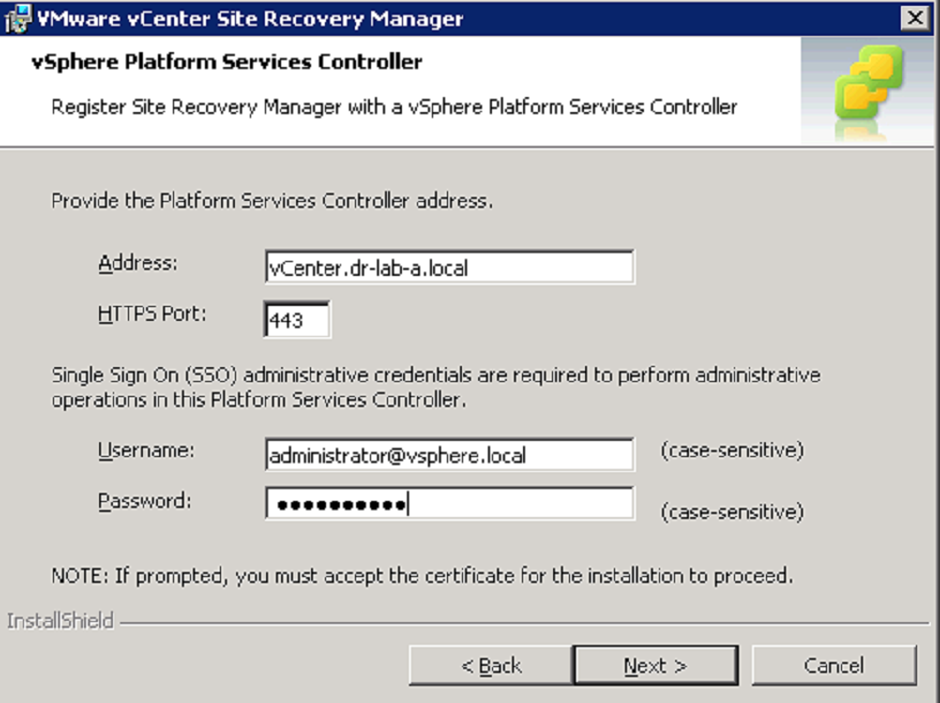
  6. Provide the vCenter Server username and password, click Next.
  7. Click Yes on the security warning.
  8. Click Yes when asked to overwrite the existing SRM registration.
  9. Select the option to automatically generate a certificate or use a PKCS#12 certificate file. In my case, I choose to automatically generate a certificate. Click Next.
  10. If you choose to generate a certificate for you, provide the Organization and Organization Unit. If you choose the certificate file option, this windows will not appear. Click Next to continue.
  11. Verify the settings for the SRM Extension and click Next.
  12. In the Database Configuration, provide the username and password for the SRM database. Click Next.
  13. In the Database Usage Selection, choose if you want to use the existing database or recreate the database (this will of course destroy the data). In my case, I used the existing database.
  14. Click Install to begin the installation.
  15. Click Finish to complete the installation wizard.

Upgrade SRM Client plug-in

Up next is the SRM Client plug-in upgrade. Before you begin, uninstall the old SRM plug-in from your system (Control Panel –> Programs).

  1. Open the vSphere Client (the SRM Client plug-in is at the time of this writing not available for the vSphere Web Client) and open the Plug-in Manager.
  2. Under the Available Plug-ins click the Download and Install link.
  3. Install the certificate and ignore the warning.
  4. Run the installer.
  5. The installation is as easy as next, next, finish.

Upgrade vSphere Replication

The easiest way to upgrade the vSphere Replication is by using VMware Update Manager. You have to upgrade the vSphere Replication Management server first.

  1. Open the VMware Update Manager and select the Configuration tab.
  2. Select Download Settings and make sure the VMware VA update source is selected. Click Download Now to check for new updates.
  3. Next, go to Baselines and Groups, select VMs/VAs button and click Create to create a new baseline.
  4. In the new baseline wizard, provide a suggestive name for the baseline and make sure the VA Upgrade is selected. Click Next.
  5. In the Upgrade Options window, select VMware Inc. as Vendor and All Products as Appliance. Click Add Rule and Next to proceed.
  6. Click Finish to create the new baseline.
  7. Next, go to VMs and Templates view. Select the vSphere Replication Management Server and select the Update Manager tab.
  8. Click Attach, and select the baseline created earlier.
  9. Click Remediate to start the upgrade.
  10. Click Next in the remediation section.
  11. Provide a task name and schedule the upgrade or upgrade immediately.
  12. If desired, take a snapshot and provide a name for the snapshot. Click Next.
  13. Review the settings and click Finish.
  14. Wait until the upgrade completes.

Repeat the steps described in Upgrade vSphere Replication for all vSphere Replication servers in your environment.

All done, don’t forget to upgrade the Recovery Site. :)

Cheers!

- Marek.Z

Posted in Site Recovery Manager, Upgrade, VMware, vSphere | Tagged: , , , , | Leave a Comment »

VMs on nested ESXi 5.x host will not start after upgrade to ESXi 5.1

Posted by Marek.Z on 2 November 2012

Recently I upgraded my physical server to ESXi 5.1 and I have been running different VMs on it without any issues. Unfortunately, when I powered on my whole vCenter Site Recovery Manager infrastructure and tried to power on some x64-bit VMs, I received the following error message. 

Checking all the settings didn’t reveal any misconfiguration or what so ever so this has to do with upgrade of my home lab server to ESXi 5.1. I found this article “Having Difficulties Enabling Nested ESXi in vSphere 5.1?” by William Lam where he explains what has been changed regarding the Virtual Hardware Virtualization (VHV) in vSphere 5.1. If you follow this blog you should be able to quickly create a new nested ESXi host on your hardware.

Okay, that is for new ESXi VMs. What about existing ESXi ones? Well, take a look at this quick and simple procedure how to enable VHV on your existing ESXi hosts.

  1. First of all, like William stated in his blog, “This is not officially supported by VMware” so use it at your own risk!
  2. In your vCenter Server, power off and remove the nested ESXi host from the inventory.
  3. Open the datastore containing the host and download the .vmx flie to your desktop.
  4. Open the .vmx file and add the vhv.enable = “TRUE” parameter at the end of the file. Save it.
  5. Delete the old .vmx file from the datastore.
  6. Upload the modified .vmx file back to the datastore.
  7. Register the VM back in the vCenter Server.
  8. Select the correct location, cluster and host.
  9. Verify that Hardware Virtualization is now enabled. Edit settings, expand the CPU menu and verify that Expose hardware assisted virtualization to the guest OS is now checked.
  10. Power on the nested ESXi host.
  11. Repeat the process for every nested ESXi host in your vCenter Server.

When your nested infra is up and running the x64-bit VMs should start without any errors.

Cheers!

- Marek.Z

Posted in ESXi 5.1, Nested, Virtual Machines, VMware, vSphere 5 | Tagged: , , , , , | Leave a Comment »

Upgrading from ESXi 5.x to ESXi 5.1 using VMware Update Manager

Posted by Marek.Z on 21 September 2012

In-place upgrade of ESXi hosts is quick and simple and well suitable for small environments. However, if you want to upgrade a large number of ESXi hosts without any downtime, you can simply use VMware Update Manager to do the job which is provided with the vCenter Server installation ISO. Before you can upgrade your ESXi hosts make sure that you upgrade the vCenter Server and VMware Update Manager to version 5.1 first. Also, make sure you have a back-up of your hosts in case something goes wrong and you will have to restore the hosts to their original state.

The VMware Update Manager is not available in the vSphere Web Client yet, so you will have to use the good, old vSphere Client.

Before you begin, download the latest ESXi ISO image from VMware.

Upgrade Process

  1. First, you need to import the new image to the VMware Update Manager.
  2. Log in to the vCenter Server and from the Home pane navigate to Update Manager under Solutions and Applications.
  3. Go to the ESXi Images tab and click Import ESXi Image.
  4. In the Import ESXi Image window, click Browse and select the ESXi ISO image.
  5. With the image loaded, click Next to continue.
  6. Ignore the security warning and install the certificate. Wait until the image is processed. Click Next and create a new baseline.
  7. Click Finish. The image and all software packages in it will now be visible. 
  8. Go back to the Home page and navigate to Hosts and Clusters.
  9. Select your cluster, and go to the Update Manager tab. Click Attach
  10. Select the upgrade baseline created earlier and click Attach
  11. When the baseline is loaded, click Scan to scan your hosts in the cluster against the baseline. Make sure you select the Upgrades check box and unselect the Patches and Extensions. Click Scan to start the process.
  12. When the scan completes, you should see how many hosts are compliant and non-compliant with the baseline. In my case, two hosts were not-compliant. 
  13. Select the non-compliant hosts and click Remediate.
  14. In the Remediate wizard, verify that the correct hosts are selected and click Next.
  15. Accept the EULA and click Next.
  16. If you have incompatible 3rd party software running on your ESXi hosts, you can remove it at this point. Click Next.
  17. Under the Schedule part, type the Task Name and set desired remediation time. Click Next.
  18. In the Maintenance Mode Options, select the appropriate settings for your environment and click Next.
  19. Do the same in the Cluster Remediation Options, click Next.
  20. Review the settings in the Ready to Complete window and click Finish to start the upgrade process.
  21. Watch the progress, VMs will be migrated to other hosts. The host that is being upgraded should enter the maintenance mode, disconnect from the vCenter Server, upgrade to ESXi 5.1, reboot and reconnect to vCenter Server again.

When all hosts are upgraded, al hosts should be 100% compliant with the baseline and you have successfully migrated your hosts to ESXi 5.1 :)

Cheers!

- Marek.Z

Posted in ESXi 5, upgrade, vCenter, VMware, vSphere 5 | Tagged: , , , , | 2 Comments »

Install or upgrade the vSphere Web Client

Posted by Marek.Z on 14 September 2012

The vSphere Web Client lets you connect to a vCenter Server system to manage your vSphere infrastructure and ESXi hosts through a browser. The vSphere Web Client requires a connection to the vCenter Single Sign On server so make sure you install it before installing vSphere Web Client. Also, make sure that the Inventory Services and the vCenter Server are upgraded to version 5.1. Currently the following web browsers are supported in version 5.1 of the vSphere Web Client:

  • Microsoft Internet Explorer 7, 8, and 9
  • Mozilla Firefox 3.6 and later
  • Google Chrome 14 and later

The vSphere Web Client also requires the Adobe Flash Player version 11.1.0 or later to be installed with the appropriate plug-in for your browser. If you have an earlier version of the vSphere Web Client installed on your system, the steps described below will upgrade the vSphere Web Client to version 5.1.

Installation

Before you begin, close all web browsers on your machine.

  1. Log in as Administrator on your vCenter Server and start the VMware vCenter Installer.
  2. Select the VMware vSphere Web Client and click the Install button.
  3. Select the language for the installation and click OK.
  4. When the files are decompressed, click Next.
  5. Click Next for the End User Patent Agreement and for the EULA (make sure you accept it first).
  6. Change the installation folder if necessary and click Next.
  7. Accept the default HTTP and HTTPS port setting or change if necessary. Click Next
  8. Enter the Administrator credentials to register Web Client with vCenter SSO. Click Next
  9. Click Install to start the installation process.
  10. Click Finish when the installer is ready to close the wizard.

At this point the installation of Web Client Server is completed.

Client Integration Plug-in

Before you can start using the vSphere Web Client, you must install the vSphere Web Client Integration Plug-in which will provide access to a virtual machine’s console in the vSphere Web Client, and access to other vSphere infrastructure tasks.

Note: if you receive a warning that the plug-in cannot be downloaded, disable the Protected Mode in Internet Explorer for the Internet and Local Intranet zones.

  1. Navigate to https://vSphere_Web_Client_host_name_or_IP:9443/vsphere-client or via Start –> Programs –> VMware –> VMware vSphere Web Client to open the application.
  2. Click the “Download the Client Integration Plug-in” link at the bottom of the web page. 
  3. Run the installer and close all browser windows.
  4. In the installation wizard accept the EULA and click Next.
  5. Change the installation folder if necessary, click Next.
  6. Click Install to start the installation process and Finish to close the installer when it completes.
  7. Start the vSphere Web Client and log in as you would normally do on your vCenter Server through the vSphere Client. Alternatively, select the “Use Windows session authentication” to log in.
  8. When the authentication and initialization is ready you should see similar screen (see below).

The vSphere Web Client is now operational and can be used to manage your vSphere infrastructure. And remember; the cool new features are only available in the Web Client and not in the vSphere client! :)

Cheers!

- Marek.Z

Posted in vCenter, VMware, vSphere 5, Web Client | Tagged: , , , , | 5 Comments »

Upgrading ESXi 5.0 host to ESXi 5.1

Posted by Marek.Z on 13 September 2012

In the last article I have covered the upgrade process from vCenter Server 5.0 to vCenter server 5.1. In this article I will cover a quick how to on upgrading your ESXi host to version 5.1. In this case, I will perform an in place upgrade of the host. Before you proceed with upgrade in your production environment, please read chapter 6 “Upgrading and Migrating Your Hosts” from the vSphere Upgrade guide.

  1. Boot your server from the CD or USB drive containing the ESXi 5.1 installer.
  2. Press Enter to start the interactive installer. 
  3. When the files are loaded, press Enter to continue.
  4. Press F11 to accept the EULA.
  5. Select the disk containing previous installation of ESXi and press Enter
  6. When the scanning is completed you will be presented with the following message. Select the Upgrade option and press Enter to continue. 
  7. Press F11 to confirm the upgrade of your ESXi host. 
  8. When the installer finishes the upgrade, remove the installation media from the host and press Enter to reboot.
  9. When the hosts reboots, you should see the familiar screen with the software version , host name and IP address. 

That’s it! You are done. This process takes literally minutes to complete. :)

Cheers!

- Marek.Z

Posted in ESXi 5, ESXi 5.1, How To, upgrade, VMware, vSphere | Tagged: , , , , , | 5 Comments »

 
Follow

Get every new post delivered to your Inbox.

Join 429 other followers