Default Reasoning

Construction of sensible guesses when some useful information is lacking and no contradictory evidence is present…

  • Subscribe

  • Disclaimer

    This blog is personal. The views and opinions expressed here represent my own and not those of the people, institutions or organizations that I may or may not be related with unless stated explicitly. All blog post, white papers and manuals were written during the projects, mostly at a customer site and are scenario specific. Use at your own risk.
  • Meta

Archive for the ‘HP’ Category

HP StorageWorks P4300 G2 SAN – Lessons learned.

Posted by Marek.Z on 13 October 2010

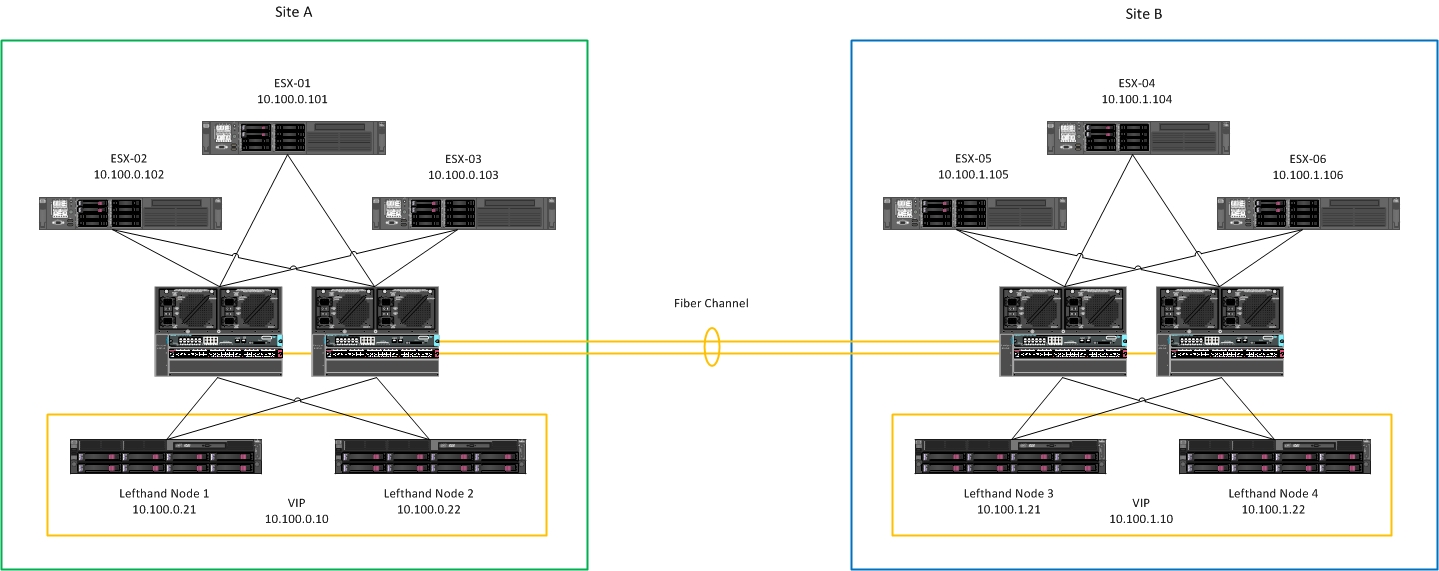
There are a lot great blog posts about the HP StorageWorks P4000 SAN arrays (formally known as HP Lefthand). I think the articles written by Frank Denneman are one of the most famous :) . Anyway, a few days ago I had a chance to work with the HP P4300 SAN’s myself when I was configuring a new virtual infrastructure for one of our customers. There were 4 HP StorageWorks P4300 SAN arrays, 2 at the main site and 2 at the failover site.

Creating LUN’s with the SAN/iQ software is quite straight forward so I’ll skip that. There are some things to keep in mind when configuring you ESX(i) hosts though.

  • The native ESX(i) VMkernel Multipath I/O (MPIO) cannot be used with the HP Lefthand arrays in multi-site design that are located in two different subnets. The MPIO cannot be routed across the subnets by the ESX(i) iSCSI initiator. (See this doc from HP on page 7).
  • In a multi-site design, use one VMkernel port per physical adapter and set the path selection policy to fixed (Page 11 of the doc mentioned above).
  • Do not use the IP addresses of the SAN nodes, use the Virtual IP address of each site when configuring the iSCSI target discovery on the ESX(i) host. This will provide distribution of the iSCSI sessions across the nodes and maximize performance and bandwidth utilization.

Okay, that’s just my two cents :)

Cheers!

- Marek.Z

Posted in ESX 4, HP, Lefthand, P4300, StorageWorks, VMware | 4 Comments »

How to enable Jumbo Frames on a HP ProCurve Switch.

Posted by Marek.Z on 12 October 2009

When configuring an iSCSI network, don’t forget to enable the Jumbo Frames on you physical switches. Follow these steps to enable the Jumbo Frames on a specific VLAN on a HP ProCurve switch: 

  1. Login to your switch.
  2. After login type: <switch># config
  3. You will enter the config mode, type: <switch>(config)# show vlans to show the VLAN configuration.
  4. To enable Jumbo Frames on the VLAN type: <switch>(config)# vlan <ID#> jumbo
  5. Check if the setting applied successfully by typing: <switch>(config)# show vlans again. The Jumbo column for the specific VLAN in the output should change to Yes.
  6. Save your changes:<switch>(config)# write memory
  7. Logout from the switch. 

Tested on a HP ProCurve 2900-24G switch.

Cheers!

- Marek

Posted in HP, ProCurve | 6 Comments »

 
Follow

Get every new post delivered to your Inbox.

Join 428 other followers