Here is a quick “how to” on upgrading the VMware vCenter Site Recovery Manager from version 5.0 to version 5.0.1. It is recommended that you perform an in-place upgrade rather than a new installation as this will preserve all reports, recovery plans, protection groups etc. The upgrade procedure must also be performed on the Recovery Site. Before you begin make sure the following criteria are met:
- SRM database is backed up
- The SRM software is downloaded from VMware
- Read the release notes
The upgrade process is quite straightforward and contains the following steps:
- Upgrade the SRM software
- Reinstall the SRM vCenter plug-in
- Upgrade the VRM server (if applicable)
- Upgrade the VR server (if applicable)
- Repeat the process for the Recovery Site
Let’s start with upgrading the software at the Protected Site.
Software Upgrade
- Login to the vCenter Server on the Protected Site, locally or through RDP.
- Execute the VMware-srm-5.0.1-<Build_Number>.exe and click Yes when asked if you want to continue.
- On the Welcome screen, click Next to proceed.
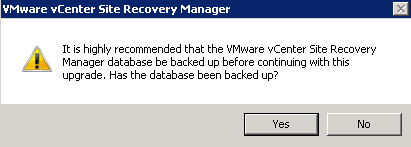
- You will be presented with the following question: “It is highly recommended that the VMware vCenter Site Recovery Manager database is backed up before continuing with this upgrade. Has the database been backed up?” Answer Yes to proceed, otherwise backup the database first.
- The upgrade process will start. Wait until it is completed and click the Finish button to close the window.
Reinstall vCenter plug-in
- When still logged in on the vCenter Server at the Protected Site, open the VMware vSphere Client and connect to the vCenter Server.
- Go to the Plug-ins menu and select Manage Plug-ins.
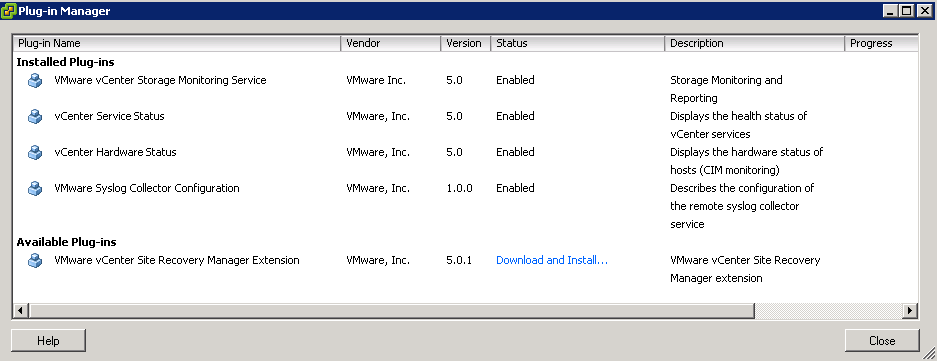
- In the Plug-in Manager you should see that a new SRM Extension is available. Click on Download and Install to upgrade the plug-in.
- Install the certificate and click on Ignore in the security warning window.
- Click Run in the next window to start the upgrade process.
- Click Yes when asked if you want to continue.
- In the Welcome screen click on the Next button to continue.
- If you are presented with a message that some files are in use, select “Automatically close and attempt to restart application” option. Click OK to continue.
- Click Finish to close the window.
Upgrade VRM Server
Since I’m using vSphere Replication, I also need to update the VRM Server and the VR Server.
- Open you Internet browser and navigate to the https://VRM_Server_IP_Address:8080.
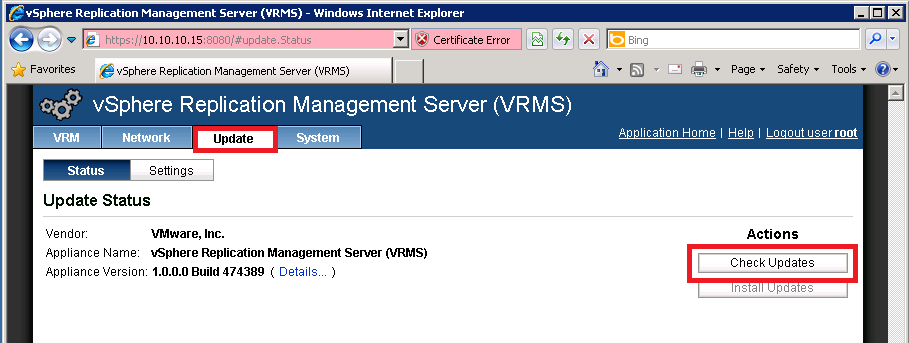
- Login with the root account to the appliance, select the Update tab and click Check Updates under the Actions menu on the left.
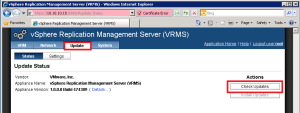
- Note that an update is available.
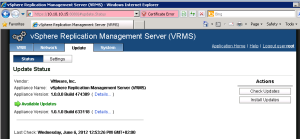
- Click Install Updates to start the update process.
- Click OK if asked “Are You sure you want to install updates?”
- Wait until the update is installed.
- Logout from the appliance.

Upgrade VR Server
- With the Internet browser still open, go to https://VR_Server_IP_Address:5480.
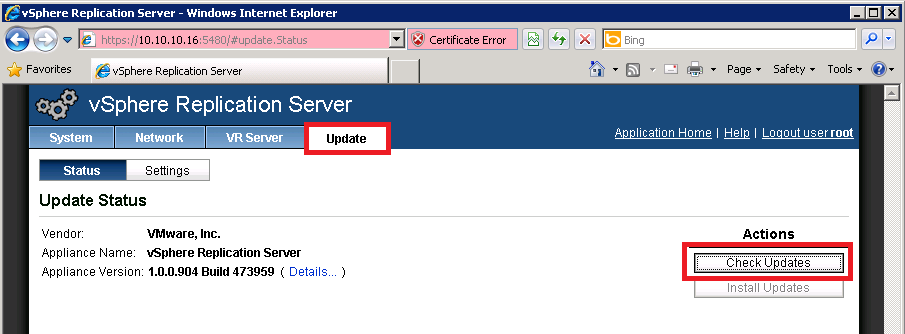
- Login with the root account (default password is: vmware), select the Update tab and click Check Updates under the Actions menu on the left.
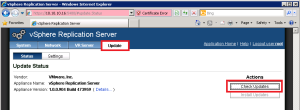
- When the new update is detected, click on Install Updates.
- Click OK if asked “Are You sure you want to install updates?”
- Wait until the update is installed.
- Logout from the appliance.
Reminder: don’t forget to upgrade the Recovery Site as well!
The VMware vCenter Site Recovery Manager is now upgraded to version 5.0.1
Cheers!
– Marek.Z
Nice reading Marek
Thanks Sander!
Cheers!