Default Reasoning

Construction of sensible guesses when some useful information is lacking and no contradictory evidence is present…

  • Subscribe

  • Disclaimer

    This blog is personal. The views and opinions expressed here represent my own and not those of the people, institutions or organizations that I may or may not be related with unless stated explicitly. All blog post, white papers and manuals were written during the projects, mostly at a customer site and are scenario specific. Use at your own risk.
  • Meta

Archive for the ‘vSphere 5’ Category

ESXCLI Basics: Configure Dump Collector Host

Posted by Marek.Z on 15 January 2013

Another basic command, but may be useful in stateless environments with no local disk usable for a diagnostic partition. Here is a quick how-to.

  1. Connect to your host through SSH or open the DCUI.
  2. Setup the VMkernel interface, remote server IP address and port: # esxcli system coredump network set -v vmk0 -i 10.10.10.10 -o 6500
  3. Enable the remote dump collector host: # esxcli system coredump network set -e true
  4. Verify the settings: # esxcli system coredump network get
  5. Logout.

Done!

Verify if the ports are open on the firewall though vSphere Client or vSphere Web Client. This could of course be applied to the host through the Host Profiles. One more thing, ESXi Dump Collector is not supported on vSphere distributed switches (at the time of this writing).

Cheers!

- Marek.Z

Posted in Dump Collector, ESXCLI, ESXi 5, ESXi 5.1, VMware, vSphere 5 | Tagged: , , , , , , , | Leave a Comment »

Calculating Percentage of Cluster Resources Admission Control Policy for an unbalanced vSphere 5.x cluster

Posted by Marek.Z on 21 November 2012

I’ve been working lately on a project for one of our customers and one of the requirements was to reuse as much hardware as possible. This led of course to a HA/DRS cluster configuration with hosts with different memory and CPU sizes. As you probably all know this will lead to an unbalanced cluster. I’ve done some research about unbalanced clusters but beside the VMware vSphere 5.1 Clustering Deepdive by Duncan Epping and Frank Denneman there wasn’t much info about this subject and how to correctly calculate the values. So, first let`s define what an unbalanced cluster is.

Hosts with different sizes of memory and processor create an unbalanced cluster. The percentage of memory and processor resources should be equal or larger than the largest host in the cluster.

Okay, now, consider the following scenario. The hosts that will be part of the new cluster without any running VMs looks like this:

  • 2 hosts with 72 GB memory and 24 GHz of CPU
  • 10 hosts with 98 GB memory and 40 GHz of CPU
  • 8 hosts with 128 GB memory and 42 GHz of CPU

As you can see, the hosts have different sizes of memory and CPU resources. If we create a new cluster with these hosts, the cluster will be unbalanced and we have to calculate the correct percentage of cluster resources that will be reserved as failover spare capacity.

First, let’s calculate the total resources available.

Note: virtualization overhead and memory/CPU reservations are not taken in to account in this calculation.

Memory

((2×72 GB)+(10×98 GB)+(8x128GB)) = 144 GB+980 GB+1024 GB = 2148 GB

CPU

((2×24 GHz)+(10×40 GHz)+(8×42 GHz)) = 48 GHz+400 GHz +336 GHz = 784 GHz

Okay, now let’s assume that the cluster will tolerate a maximum of 3 host failures. How do you calculate the correct percentage of resources that should be reserved as failover spare capacity? Well, we have to calculate how much percent every single host contributes to the total capacity of the cluster.

Memory

Host A: 72 GB of 2148 GB = (72/2148) x 100 = 3.35%

Host B: 98 GB of 2148 GB = (98/2148) x 100 = 4.56%

Host C: 128 GB of 2148 GB = (128/2148) x 100 = 5.96 %

Total: ((2×3,35%)+(10×4,57%)+(8×5,96%)) ≈ 100% (round)

CPU

Host A: 24 GHz of 784 GHz = (24/786) x 100 = 3,05%

Host B: 40 GHz of 784 GHz = (40/786) x 100 = 5.1%

Host C: 42 GHz of 784 GHz = (42/786) x 100 = 5.34%

Total: ((2×3,05%)+(10×5.1%)+(8×5,34%) ≈ 100% (round)

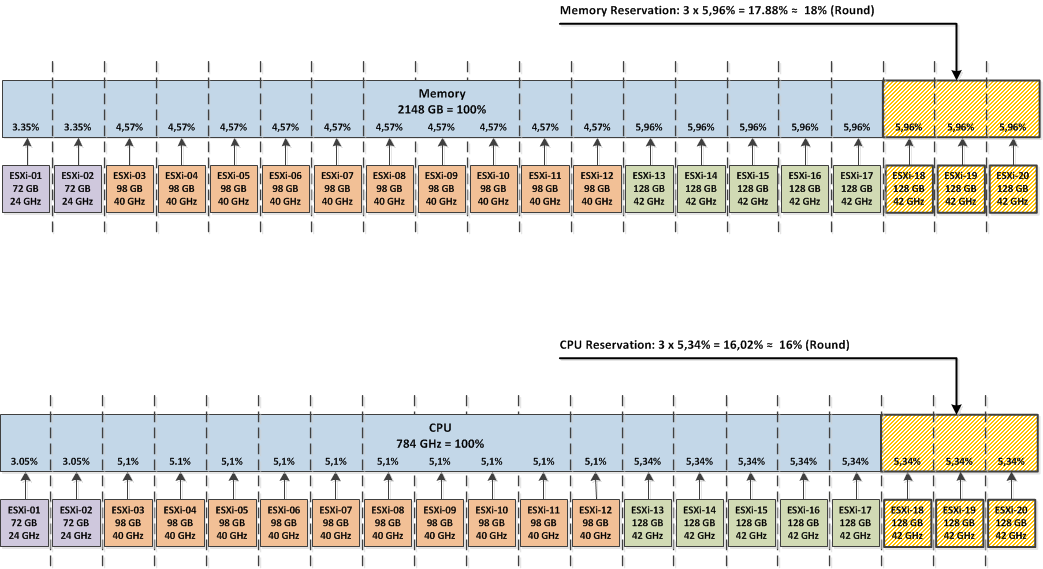
To make it a little bit clearer, take a look at the following picture. Thanks to Frank Denneman for letting me borrow his design of the drawings he used in one of his blog posts about this matter. :)

As stated above, the percentage of memory and processor resources should be equal or larger than the largest host in the cluster. The largest host has 5,96% memory and 5,34% CPU. To accommodate a 3 host failure the percentage of memory and CPU will be (3×5,96%) = 17,88% and (3×5,34%) = 16,02% respectively. But to be safe, I would round the number, add some extra percentage and configure the admission control policy as depicted below.

This is however not a recommended cluster configuration. I have briefly discussed this scenario with Frank Denneman at the Belgium VMUG meeting. Mixing hosts with different CPU speeds could potentially lead to performance issues on the virtual machines when moved from one host to another.

Anyway, if you or your customer chooses to implement an unbalanced cluster, I hope this example will help you calculate the correct percentage of cluster resources when building an unbalanced cluster.

Cheers!

- Marek.Z

Posted in vCenter, VMware, vSphere 5 | Tagged: , , , , , , | Leave a Comment »

VMs on nested ESXi 5.x host will not start after upgrade to ESXi 5.1

Posted by Marek.Z on 2 November 2012

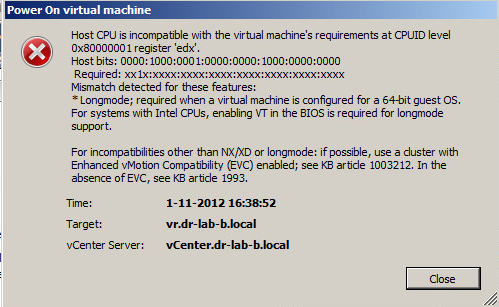
Recently I upgraded my physical server to ESXi 5.1 and I have been running different VMs on it without any issues. Unfortunately, when I powered on my whole vCenter Site Recovery Manager infrastructure and tried to power on some x64-bit VMs, I received the following error message. 

Checking all the settings didn’t reveal any misconfiguration or what so ever so this has to do with upgrade of my home lab server to ESXi 5.1. I found this article “Having Difficulties Enabling Nested ESXi in vSphere 5.1?” by William Lam where he explains what has been changed regarding the Virtual Hardware Virtualization (VHV) in vSphere 5.1. If you follow this blog you should be able to quickly create a new nested ESXi host on your hardware.

Okay, that is for new ESXi VMs. What about existing ESXi ones? Well, take a look at this quick and simple procedure how to enable VHV on your existing ESXi hosts.

  1. First of all, like William stated in his blog, “This is not officially supported by VMware” so use it at your own risk!
  2. In your vCenter Server, power off and remove the nested ESXi host from the inventory.
  3. Open the datastore containing the host and download the .vmx flie to your desktop.
  4. Open the .vmx file and add the vhv.enable = “TRUE” parameter at the end of the file. Save it.
  5. Delete the old .vmx file from the datastore.
  6. Upload the modified .vmx file back to the datastore.
  7. Register the VM back in the vCenter Server.
  8. Select the correct location, cluster and host.
  9. Verify that Hardware Virtualization is now enabled. Edit settings, expand the CPU menu and verify that Expose hardware assisted virtualization to the guest OS is now checked.
  10. Power on the nested ESXi host.
  11. Repeat the process for every nested ESXi host in your vCenter Server.

When your nested infra is up and running the x64-bit VMs should start without any errors.

Cheers!

- Marek.Z

Posted in ESXi 5.1, Nested, Virtual Machines, VMware, vSphere 5 | Tagged: , , , , , | Leave a Comment »

Tweaking Java.exe memory usage on vCenter Server 5.1

Posted by Marek.Z on 27 September 2012

During the upgrade of my home lab from vSphere 5.0 to vSphere 5.1 I have noticed that there is more memory consumption on my vCenter Server than before the upgrade. According to the vSphere Installation and Setup Guide, this happens because vCenter Server includes several Java services in the installation (VirtualCenter Management Webservices, Inventory Service, Profile-Driven Storage Service and Single Sign On) and when you install vCenter Server, you have an option to select the size of your vCenter Server inventory to allocate memory for these services. The inventory size determines the maximum Java Virtual Machine (JVM) heap settings for these services. Since I only have 3 hosts in my lab and just a couple of VMs I was surprised by the high memory consumption.

The default values for JVM heap settings in vSphere 5.1 can be found in table 2-5 of the vSphere Installation and Setup Guide.

Source: table 2-5 vSphere Installation and Setup Guide.

I think these values are a bit high for a small, home lab environment. Especially when you have limited resources. You can adjust the settings of the services after the installation by editing the corresponding  configuration file.

vCenter Server

Change the wrapper.java.additional.9 setting in the wrapper.conf file located in <installation_directory>\VMware\Infrastructure\tomcat\conf folder.

  1. Open the file and search for wrapper.java.additional.9
  2. Change the setting to desired value, in my case 512 MB.
  3. Save and close the file.

vCenter Single Sing On

Also here, change the wrapper.java.additional.9 setting in the wrapper.conf file located in <installation_directory>\VMware\Infrastructure\SSOServer\conf folder.

  1. Open the file and search for wrapper.java.additional.9
  2. Change the setting to desired value, in my case once again 512 MB.
  3. Save and close the file.

vCenter Inventory Service

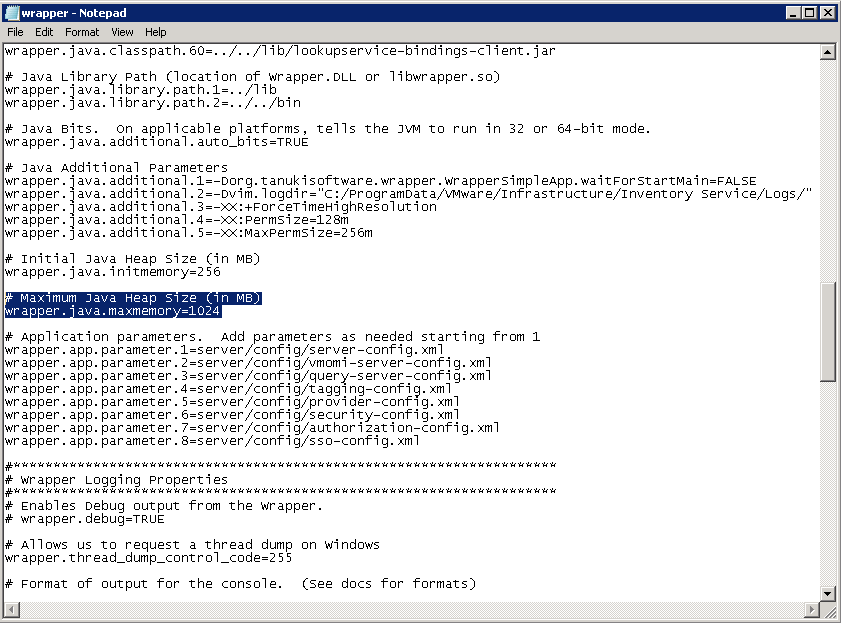
Change the wrapper.java.maxmemory setting in wrapper.conf located in the <installation_directory>\VMware\Infrastructure\Inventory Service\conf folder.

  1. Open the file and search for wrapper.java.maxmemory
  2. Change the setting to desired value, in my case 1024 MB.
  3. Save and close the file.

Profile-Drive Storage Service

Also here, change the wrapper.java.maxmemory setting in wrapper.conf located in the <installation_directory>\VMware\Infrastructure\Profile-Driven Storage\conf folder.

  1. Open the file and search for wrapper.java.maxmemory
  2. Change the setting to desired value, in my case 512 MB.
  3. Save and close the file.

Now that you have changed the settings, restart the services or the vCenter Server for the changes to take effect. Try to tweak around with the settings and find out what best suits your environment.

Cheers!

- Marek.Z

Posted in vCenter, VMware, vSphere 5 | Tagged: , , , , , , , | 14 Comments »

Configure vSphere ESXi Dump Collector

Posted by Marek.Z on 24 September 2012

Here is a quick post about configuring the vSphere Dump Collector for your ESXi hosts. I’m not going to cover the installation process because it is really simple and straightforward. You can install the Dump Collector as stand-alone instance or integrated with vCenter Server. If you choose the last option you will have to provide the IP address, port and log in credentials for the vCenter Server. After the installation, you can configure the Dump Collector using:

  • Host Profiles or
  • ESXCLI

And probably PowerCLI but I didn’t look it up yet! :)

Host Profiles

  1. Edit the host profile you want to configure or create a new one if you don’t have one.
  2. Navigate to Network Configuration –> Network Coredump Settings and select Fixed Network Coredump Policy.
  3. Make sure that the Network Coredump Collector is enabled, provide the Host NIC to use, Network Core Server IP and Network Coredump Server Port. 
  4. Click OK to save the settings.
  5. Apply the profile to your hosts.

ESXCLI

  1. Open console session to your host or log in through the ESXi Shell.
  2. Log in as root user.
  3. Check the current configuration of coredump settings:#esxcli system coredump network get
  4. Configure the coredump with: #esxcli system coredump network set --interface-name <VMkernel_Interface> --server-ipv4 <Server_IP_Address> --server-port 6500
  5. Enable the coredup by typing: #esxcli system coredump network set --enable true
  6. Verify that the coredump server is running (only available in ESXi 5.1): #esxcli system coredump network check
  7. You should see a message stating the following: “Verified the configured netdump server is running”.
  8. Log out from the host.

Note: mind the double dashes in the command syntax.

Check the firewall

Verify that the Dump Collector port is enabled in the ESXi firewall. 

Test

To test if your host will dump the PSOD data to your Dump Collector force a PSOD on your host.

  1. Log in to the host locally or remotely.
  2. Type: #vsish and press Enter
  3. Next, type: set /reliability/crashMe/Panic followed by Enter.
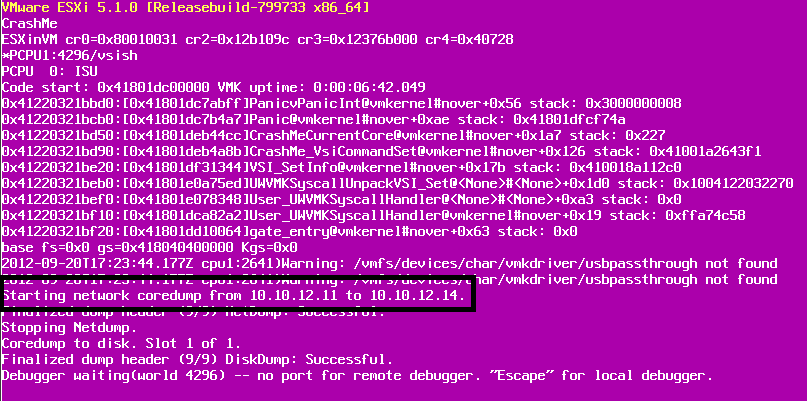
  4. This will cause a PSOD. Note that the dump is being send over the network. 
  5. Wait until the dump is ready. Navigate to the directory where the dumps are stored and you should see the dump file that was just created.

Cheers!

- Marek.Z

Posted in Dump Collector, ESXi 5.1, vCenter, VMware, vSphere 5 | Tagged: , , , , , , | Leave a Comment »

 
Follow

Get every new post delivered to your Inbox.

Join 429 other followers