Now that the VR infrastructure is up and running we can start to configure the inventory mappings. The Inventory Mappings provide a convenient way to specify how the resources at the Protected Site are mapped to the resources at the Recovery Site. You can create a mapping of the following objects in the vCenter Server:
- Resources
- VM folders
- Networks
- Datastores
Inventory mapping are not mandatory but highly recommend. In this scenario we will configure the resource mapping, folder mapping, network mapping and a placeholder datastore.
Resource Mapping
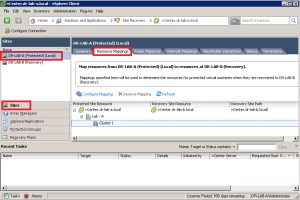
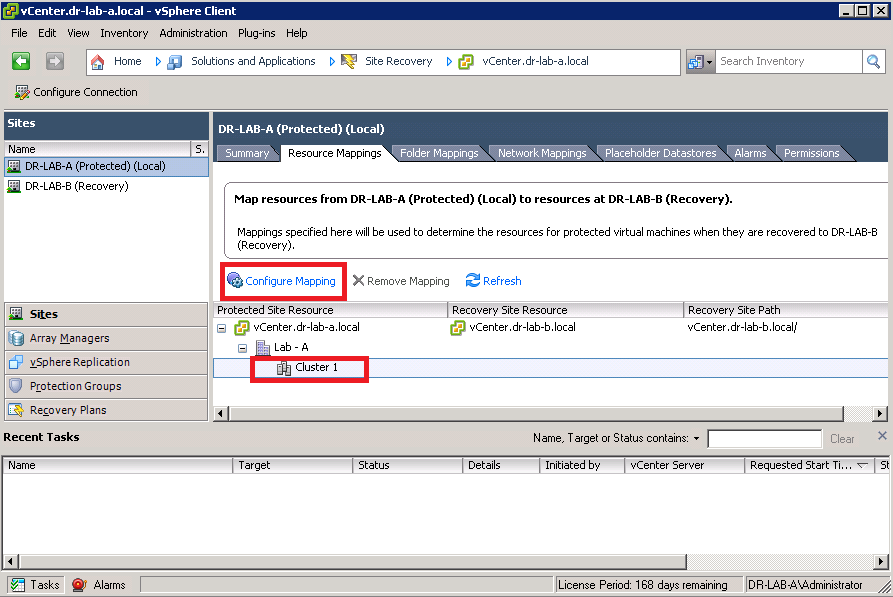
- On the Protected Site, go to the Site Recovery Manager, select the Sites in the left pane and select the Protected Site, next select the Resource Mappings tab.
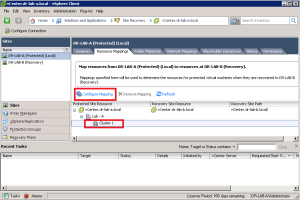
- Under the Protected Site Resource column select the cluster object and click on Configure Mapping.
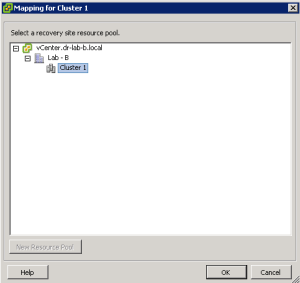
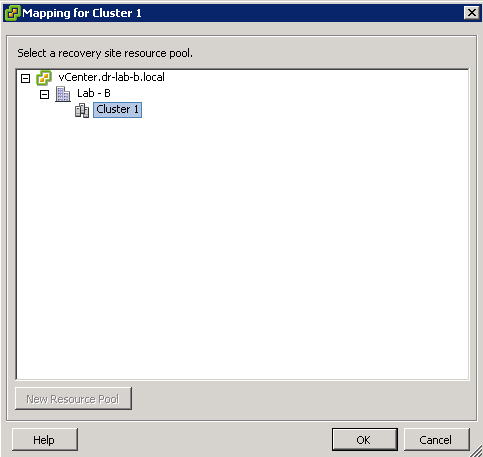
- In the mapping window, select the appropriate resource and click OK.
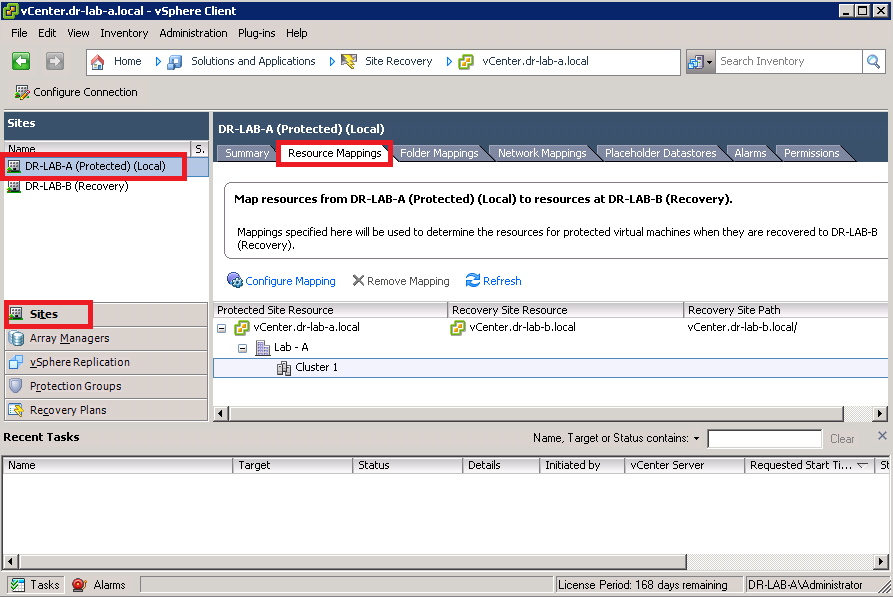
- The selected resource should now appear as mapped in the Recovery Site Resource column on the Resource Mappings tab.
Folder Mapping
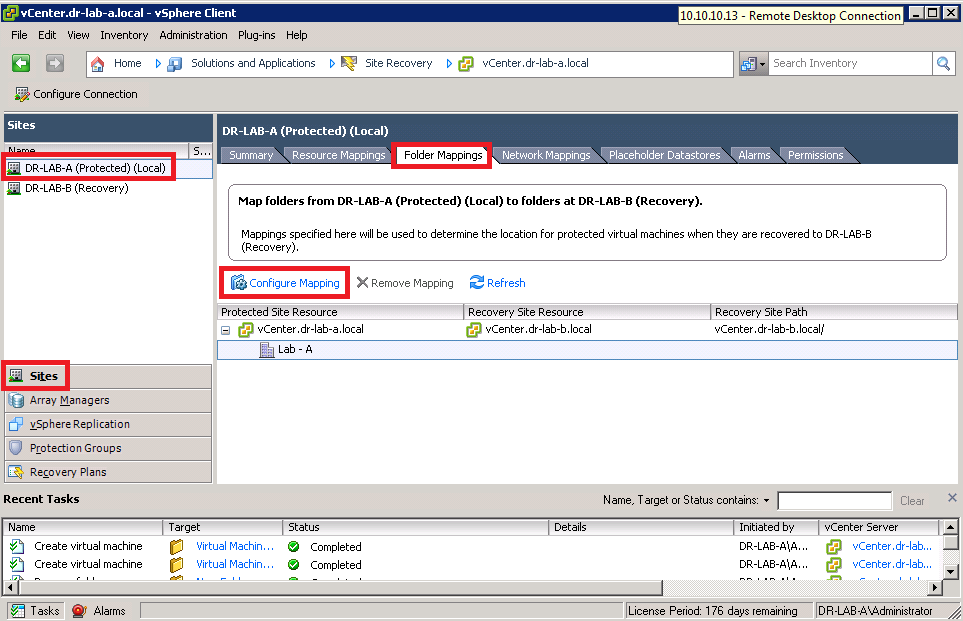
- Next, select the Protected Site in the left pane and select the Folder Mapping tab. Click Configure Mapping.
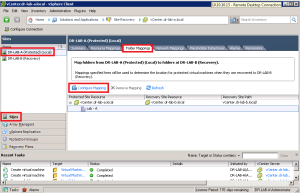
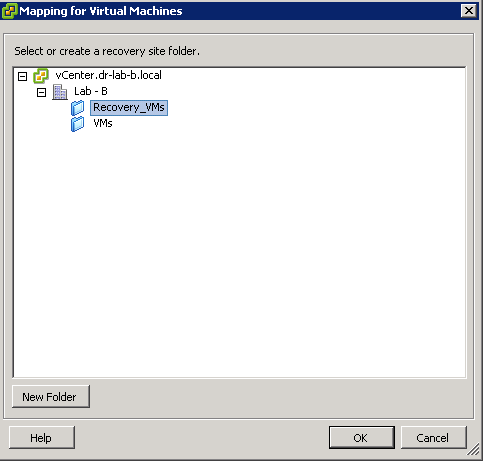
- In the mapping window, create or select a recovery folder and click OK.
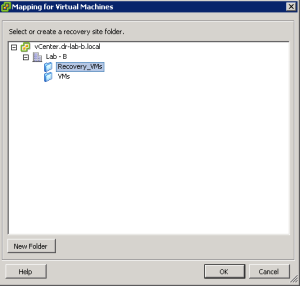
- The selected folder should now appear as mapped in the Recovery Site Resource on the Folder Mapping tab.
Network Mapping
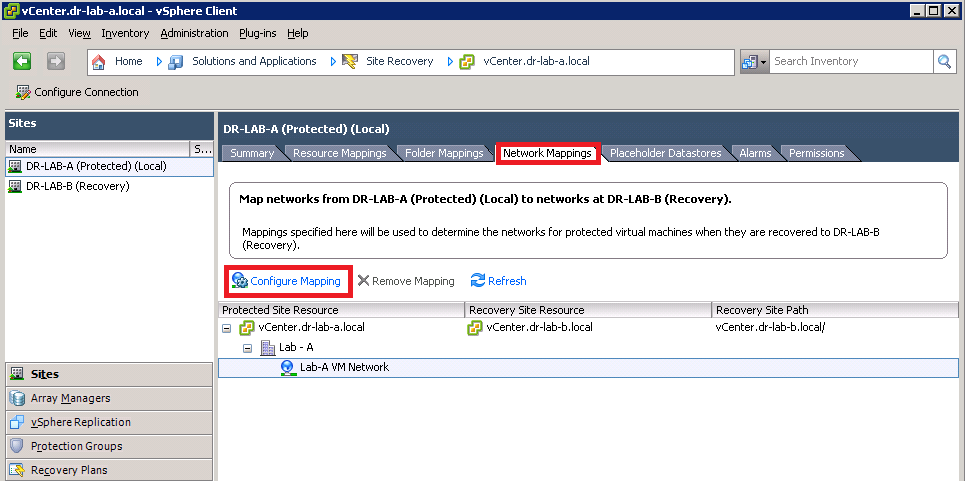
- With the Protected Site still selected, go to the Network Mappings tab and click on Configure Mapping.
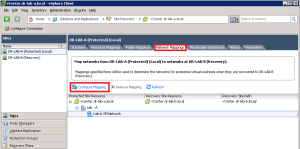
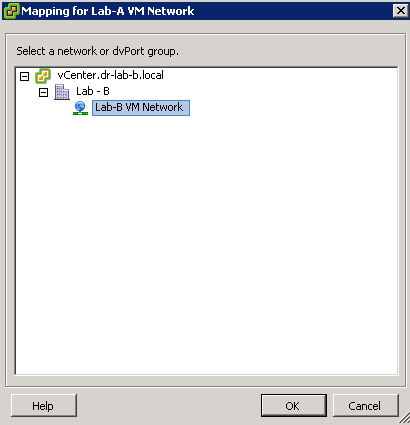
- In the mapping window, select the appropriate network or dvSwitch port group at the Recovery Site and click OK.
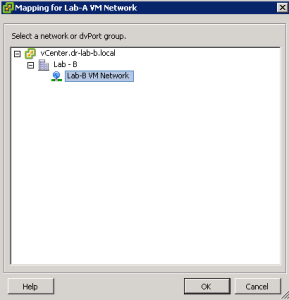
- The selected network should now appear as mapped in the Recovery Site Resource on the Network Mappings tab.
Placeholder Datastore
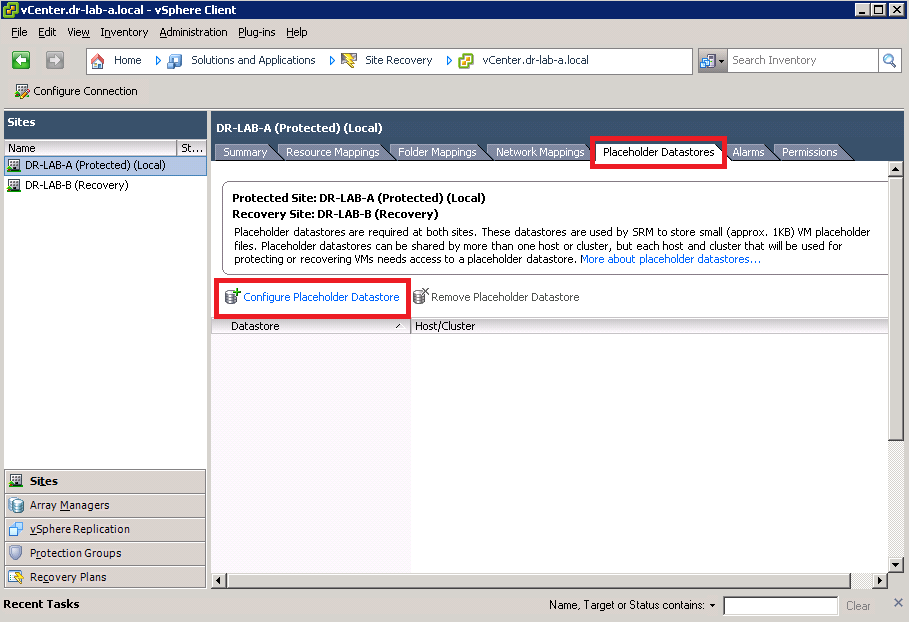
Please note that the placeholder datastore must be manually created at both sites before mapping. The placeholder datastore must be accessible to all hosts in the cluster.
- With the Protected Site still selected, go to the Placeholder Datastores tab and click on Configure Placeholder Datastore.
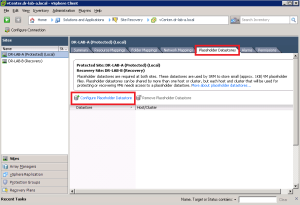
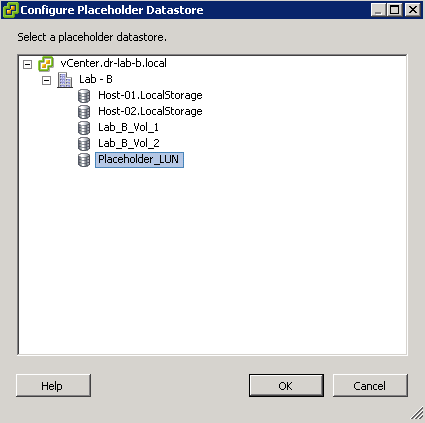
- In the mapping window, select the appropriate datastore and click on OK.
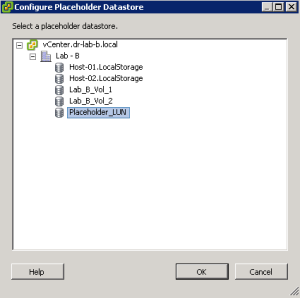
- The selected datastore should now appear under the Datastore column in the Placeholder Datastores tab.
Remember to configure the folder mapping, network mapping and the placeholder mapping at the Recovery Site.
The inventory mappings are now configured and ready to use. Continue to part 7 where we will configure vSphere Replication for our VMs.
- SRM 5 Part 1: Preparation
- SRM 5 Part 2: Installation
- SRM 5 Part 3: Site Pairing
- SRM 5 Part 4: vSphere Replication
- SRM 5 Part 5: VRM Pairing and VR Deployment
Cheers!
– Marek.Z
Be the first to comment