Before we can protect a single virtual machine or a group of virtual machines, the virtual machine files need to be replicated from the Protected Site to the Recovery Site. Since we have already set up a VR infrastructure we will proceed using this mechanism. In this case, we will skip the replication configuration of a single VM and concentrate on configuring replication of multiple VMs since it’s the most common setup in a virtual infrastructure.
Configure Replication for multiple VMs
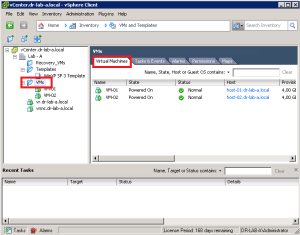
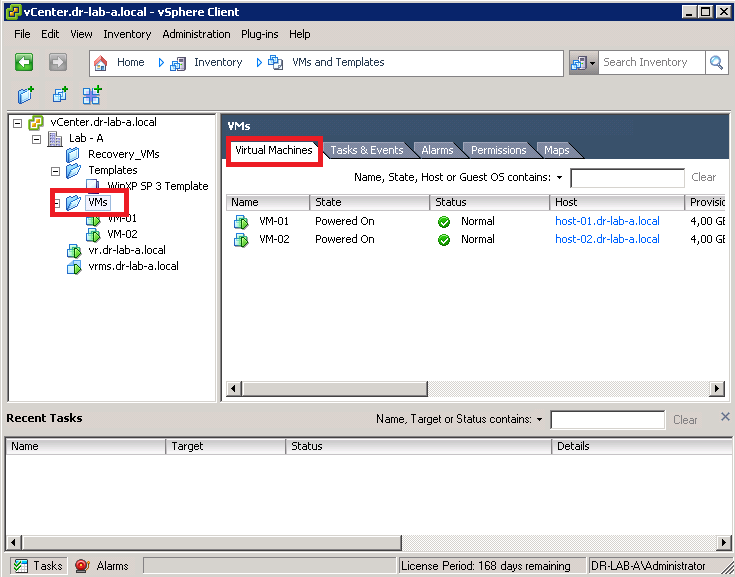
- Open the vSphere Client and from the Home page go to VMs and Templates.
- Select a folder in the left pane and select the Virtual Machines tab.
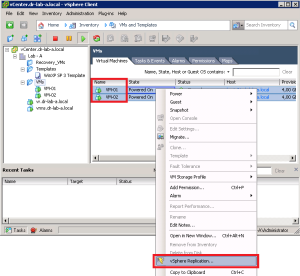
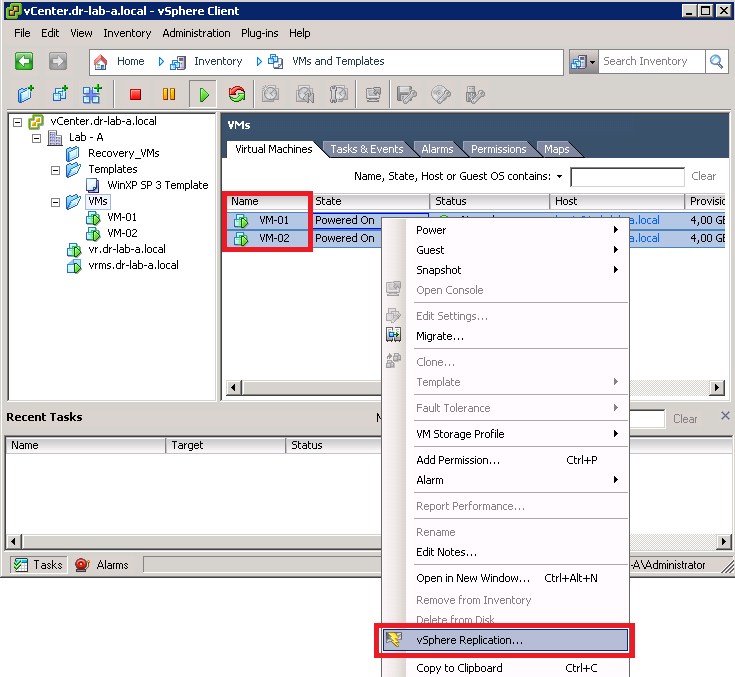
- Next, select all VMs that will be replicated. Right-click the VMs and select vSphere Replication.
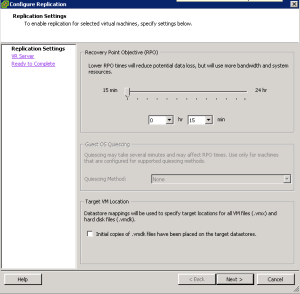
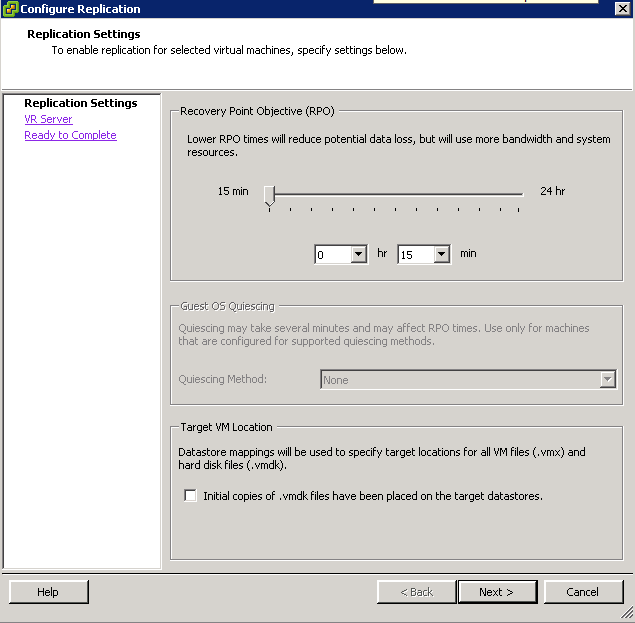
- In the Configure Replication wizard, select desired Recovery Point Objective (RPO), and lease the “Initial copies of .vmdk files have been placed on the target datastores” un-checked since we didn’t copy the files to the Recovery Site. Click Next.
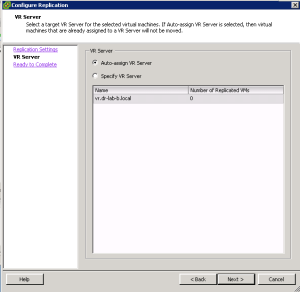
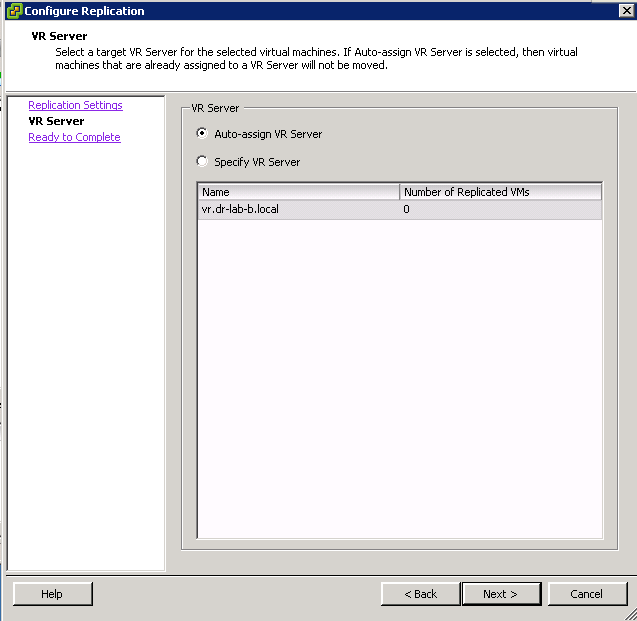
- Select the appropriate VR Server at the Recovery Site or leave the setting to Auto-assign VR Server. Click Next to proceed.
- Review the settings and click Finish.
- Click Close when the Configuring Replication process is completed.
Configure Datastore Mapping
Now that the replication of VMs has been set up, we need to create the datastore mapping for the replicated VMs on the Recovery Site.
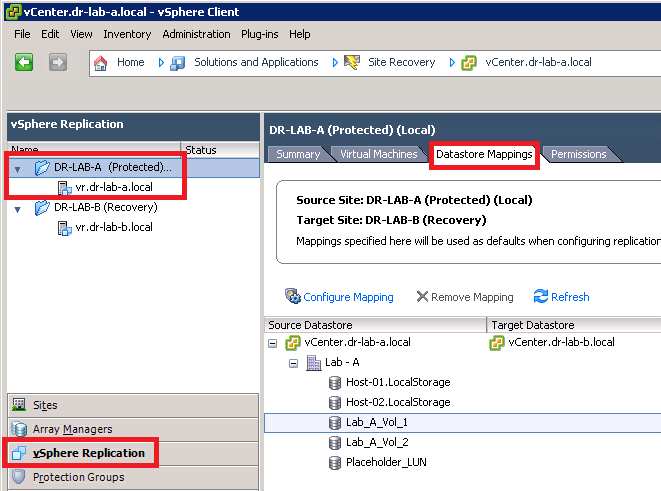
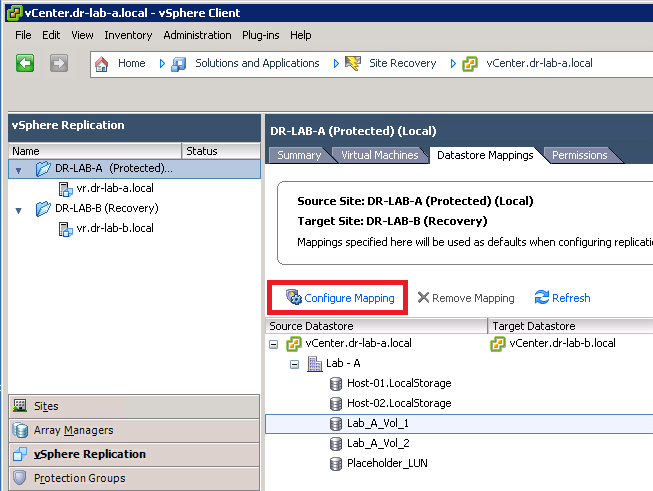
- On the Protected Site, open the Site Recovery Manager and select vSphere Replication in the left pane. Select the Protected Site and go to the Datastore Mappings tab.
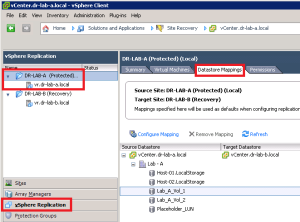
- Select a datastore under the Source Datastore and map it to the appropriate datastore at the Recovery Site by clicking on the Configure Mapping button.
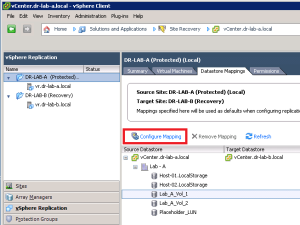
- In the Datastore Mapping window, select the appropriate datastore and click OK.
- Verify the mapping under the Target Datastore column on the Datastore Mappings tab.
- To check if the replication is running, select the Recovery Site in the vSphere Replication and select the Virtual Machines tab. You should see something similar to the screenshot below.
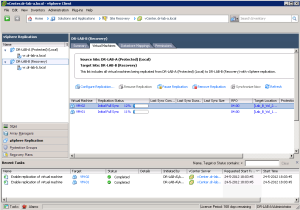
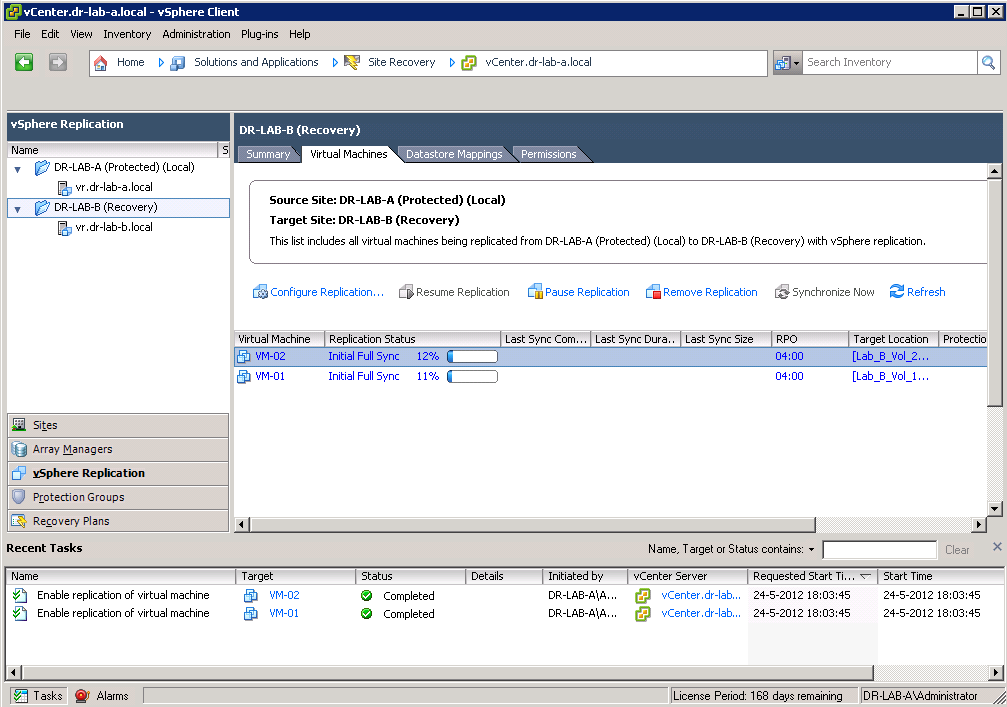
Wait until the initial full synchronization of the files completes before going to the next part.
OK, so the files of the virtual machines are now synchronized between the Protected Site and Recovery Site. Continue to part 8 where we will proceed with configuration of the Protection Group.
- SRM 5 Part 1: Preparation
- SRM 5 Part 2: Installation
- SRM 5 Part 3: Site Pairing
- SRM 5 Part 4: vSphere Replication
- SRM 5 Part 5: VRM Pairing and VR Deployment
- SRM 5 Part 6: Inventory Mappings
Cheers!
– Marek.Z
Be the first to comment